7.4 SBC Gamepad Control
This section explains how to control myCobot 280 with a USB gamepad while the UNO Q runs in SBC mode. Gamepad input moves the robot directly. Before first use, run the Joystick Mapping Test and confirm that your controller model and button numbers match this section.
1. Before You Begin
- Connect the monitor, keyboard, mouse, and externally powered USB Hub as described in 7.1 SBC Mode.
- Connect the gamepad USB receiver to the Hub and confirm that the controller is paired. Do not connect or remove the receiver while the robot is moving.
- In UNO Q App Lab, import the complete Robot Handle Control.zip project. Keep its python/, sketch/, app.yaml, and local pymycobot wheel files together.
- The project's python/requirements.txt must contain pygame==2.6.1. Before starting, stop any other App Lab, Python, or TCP Socket program that controls the robot.
- Secure the robot base and clear the work area. Do not press an end-effector button if its gripper or pump is not installed.
2. Confirm the Gamepad Mapping First
Run the Joystick Mapping Test example first. It does not connect to or move the robot. App Lab Console only prints the gamepad name, axis count, button count, and actual events, such as button 0 down, axis 3 value 1.000, or hat 0 value (1, 0).
For the controller supplied with this project in the verified environment, A/B/X/Y normally map to button 0/1/2/3; L1/R1 map to button 4/5; L2/R2 map to axis 2/5; the left stick maps to axis 0/1; the right stick maps to axis 3/4; and the D-pad maps to hat 0. Other controllers or drivers may report different numbers. The mapping-test output is the final reference.
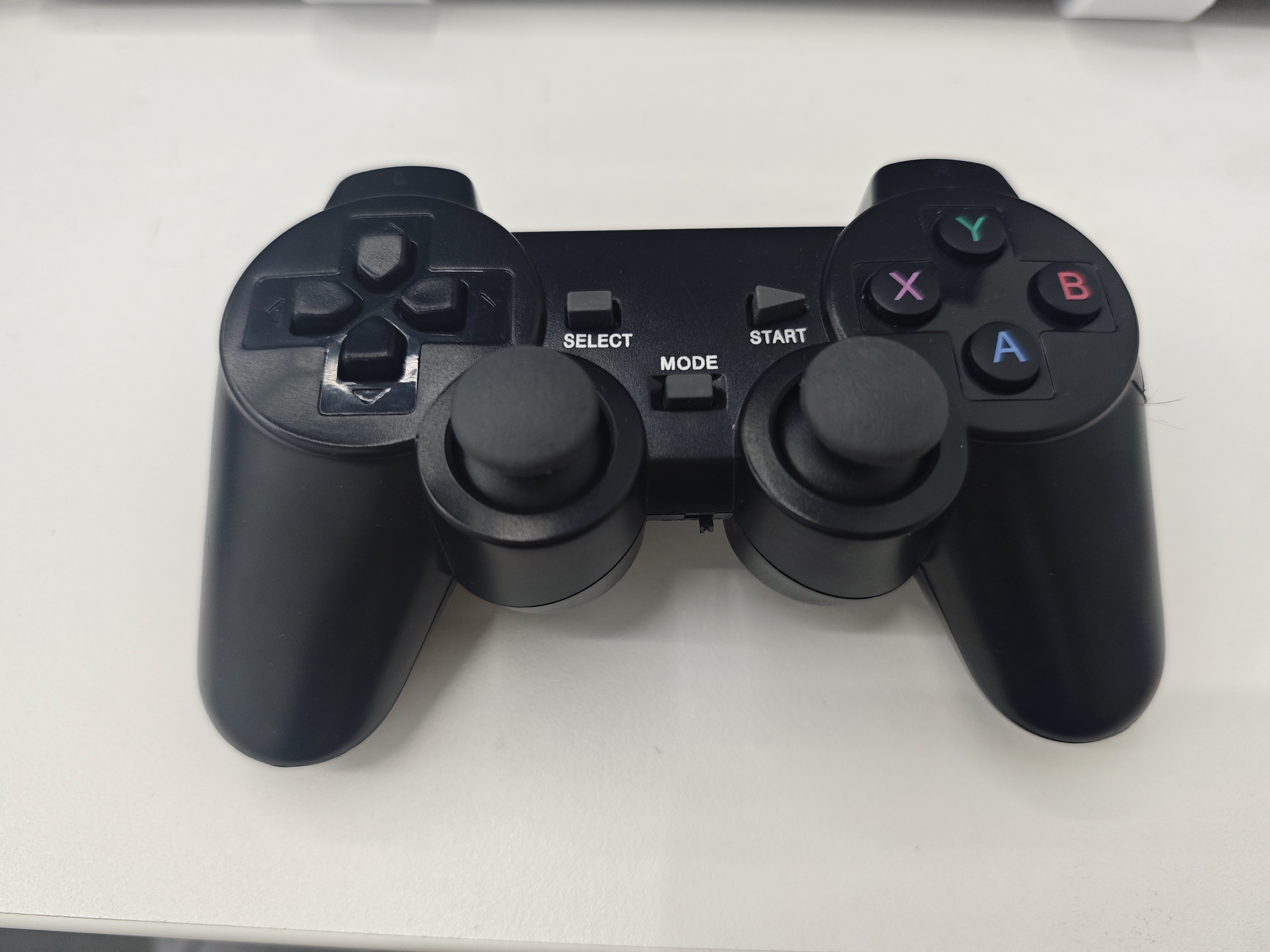
Figure 7.4-1. USB gamepad supplied with this project (front view).
L1/L2/R1/R2 are on the top of the gamepad and are not fully visible in this front-view photo. Use the button labels and mapping-test output as the reference.
3. Control Functions
3.1 Robot Motion
| Control | Direction | pygame event | Function |
|---|---|---|---|
| Left stick | Up | axis 1 < -0.3 | Increase X: jog_coord(1, 1, 50) |
| Left stick | Down | axis 1 > 0.3 | Decrease X: jog_coord(1, 0, 50) |
| Left stick | Left | axis 0 < -0.3 | Increase Y: jog_coord(2, 1, 50) |
| Left stick | Right | axis 0 > 0.3 | Decrease Y: jog_coord(2, 0, 50) |
| Right stick | Up | axis 4 < -0.3 | Decrease Z: jog_coord(3, 0, 50) |
| Right stick | Down | axis 4 > 0.3 | Increase Z: jog_coord(3, 1, 50) |
| Right stick | Left | axis 3 < -0.3 | Decrease RZ: jog_coord(6, 0, 50) |
| Right stick | Right | axis 3 > 0.3 | Increase RZ: jog_coord(6, 1, 50) |
| D-pad | Up | hat 0 (0, 1) | Increase RX: jog_coord(4, 1, 50) |
| D-pad | Down | hat 0 (0, -1) | Decrease RX: jog_coord(4, 0, 50) |
| D-pad | Left | hat 0 (-1, 0) | Increase RY: jog_coord(5, 1, 50) |
| D-pad | Right | hat 0 (1, 0) | Decrease RY: jog_coord(5, 0, 50) |
The sticks and D-pad provide jog control. Each trigger sends only a small incremental motion. If a direction is opposite to what you expect, stop using the controller and check the mapping-test output before contacting support.
3.2 End Effectors, Poses, and Servos
| Button | pygame event | Function | Requirement |
|---|---|---|---|
| A | button 0 | Turn on pump | Pump and pneumatic connections are installed correctly |
| B | button 1 | Turn off pump and release pressure | Pump is installed |
| X | button 2 | Open gripper | Adaptive gripper is installed |
| Y | button 3 | Close gripper | Adaptive gripper is installed |
| L1 | button 4 | Move to zero pose | Confirm that there is enough motion clearance |
| R1 | button 5 | Move to initial pose [0, 0, -90, 0, 0, 0] | Recommended after startup; confirm motion clearance |
| L2 | axis 2 > 0.3 | Release all servos | See the safety warning below |
| R2 | axis 5 > 0.3 | Power on servos and lock joints | Use to restore holding force after L2 |
Important safety warning: L2 releases all servos. The robot may immediately lose holding force and sag. Hold the robot or make sure it is safely supported before pressing L2; keep people away from the joints and end effector. Press R2 to restore holding force, but do not do so if the robot is obstructed or pulled by an external force.
4. Run and Stop
- In App Lab running in SBC mode, select UNO Q and import the complete Robot Handle Control.zip project.
- Click Run. In the Main / Python Console, confirm that Gamepad detected is displayed. If no gamepad is detected, the example retries the receiver every two seconds.
- Press R1 first to move the robot to its initial pose. Then test only small jog movements with the sticks before testing end-effector buttons.
- Click App Lab Stop to stop. After the robot has stopped, close the app or remove the receiver.
Each valid action prints its corresponding action and API call. Returning a stick or the D-pad to the center automatically sends stop(). If the gamepad disconnects during operation, the example stops the robot and waits for reconnection.
5. Run in the UNO Q Python Terminal (Optional)
In addition to App Lab, you can run the gamepad-control script directly from the UNO Q Debian Python terminal. This does not require App Lab and is useful for debugging, secondary development, or terminal operation outside the SBC desktop. Only one robot control entry point may run at a time.
- Connect the gamepad receiver to UNO Q and complete the mapping test in section 2.
- Confirm that UNO Q Python has the UNO Q-compatible pymycobot and pygame installed. If pygame is missing, install the dependency according to the delivery environment instructions.
- Enter the example directory and run the script:
cd ~/mycobot/example/
python3 myCobot280_unoq_handle_control.py
- After Console displays Gamepad detected, press R1 first and then test small stick movements. Press Ctrl+C to stop the script; it attempts to send stop(), including when the gamepad disconnects.
6. Mapping Test Source Code
The PDF version cannot reliably download external scripts, so both gamepad mapping-test source files are included here. The mapping test does not connect to the robot or send motion commands; it only confirms the current gamepad's axis, button, and hat numbers in Console.
6.1 App Lab Version
In an App Lab project, put the following code in python/main.py. After running it, press each gamepad control and check the actual numbers printed in Console.
# coding:utf-8
# Copy this file content to Arduino App Lab python/main.py.
import time

import pygame
from arduino.app_utils import App


RETRY_SECONDS = 2.0
AXIS_DEAD_ZONE = 0.2

joystick = None
last_retry = 0.0


def print_device_info():
    print("pygame version:", pygame.version.ver)
    print("SDL version:", pygame.get_sdl_version())


def try_connect_joystick():
    global joystick, last_retry

    now = time.time()
    if joystick is not None:
        return
    if now - last_retry < RETRY_SECONDS:
        return
    last_retry = now

    pygame.joystick.quit()
    pygame.joystick.init()
    if pygame.joystick.get_count() <= 0:
        print("No gamepad USB receiver detected. Retrying in {} seconds...".format(RETRY_SECONDS))
        return

    joystick = pygame.joystick.Joystick(0)
    joystick.init()
    pygame.event.clear()
    print("Gamepad detected: {}".format(joystick.get_name()))
    print("Axis count: {}".format(joystick.get_numaxes()))
    print("Button count: {}".format(joystick.get_numbuttons()))
    print("D-pad count: {}".format(joystick.get_numhats()))
    print("Press A/B/X/Y, L1/R1, L2/R2, the sticks, and the D-pad in turn. Click Stop to finish.")


def handle_disconnect():
    global joystick
    print("Gamepad disconnected. Waiting for reconnection.")
    joystick = None


def handle_event(event):
    device_added_event = getattr(pygame, "JOYDEVICEADDED", None)
    device_removed_event = getattr(pygame, "JOYDEVICEREMOVED", None)

    if event.type == device_added_event and joystick is None:
        try_connect_joystick()
        return
    if event.type == device_removed_event:
        handle_disconnect()
        return

    if joystick is None:
        return

    if event.type == pygame.JOYBUTTONDOWN:
        print("button {} down".format(event.button))
    elif event.type == pygame.JOYBUTTONUP:
        print("button {} up".format(event.button))
    elif event.type == pygame.JOYAXISMOTION and abs(event.value) >= AXIS_DEAD_ZONE:
        print("axis {} value {:.3f}".format(event.axis, event.value))
    elif event.type == pygame.JOYHATMOTION:
        print("hat {} value {}".format(event.hat, event.value))


def setup():
    pygame.init()
    pygame.joystick.init()
    print_device_info()
    try_connect_joystick()


def loop():
    try_connect_joystick()
    for event in pygame.event.get():
        try:
            handle_event(event)
        except pygame.error as exc:
            print("Failed to read the gamepad: {}. Waiting for reconnection.".format(exc))
            handle_disconnect()
    time.sleep(0.01)


setup()
App.run(user_loop=loop)
6.2 Debian Terminal Version
If you do not use App Lab, run the following script from the UNO Q Debian terminal. This version also prints /dev/input diagnostics, which helps check the receiver, driver, or pygame recognition state.
# coding:utf-8
import glob
import os
import platform
import stat
import sys
import time

import pygame


RETRY_SECONDS = 2.0
AXIS_PRINT_THRESHOLD = 0.2
DIAG_INTERVAL = 5


def format_mode(path):
    try:
        mode = os.stat(path).st_mode
    except OSError as exc:
        return "stat failed: {}".format(exc)
    return stat.filemode(mode)


def print_input_diagnostics():
    print("pygame joystick count: {}".format(pygame.joystick.get_count()))
    if platform.system() == "Windows":
        print_windows_diagnostics()
    else:
        print_linux_diagnostics()


def print_windows_diagnostics():
    print("Current system: Windows")
    print("If pygame cannot detect the gamepad, first confirm that Windows recognizes it:")
    print("  1. Open Device Manager and check for an Xbox 360 Controller or game controller device.")
    print("  2. Press Win+R, run joy.cpl, and confirm that the gamepad appears in the Game Controllers list.")
    print("  3. If joy.cpl recognizes it but pygame does not, reconnect the USB receiver or restart the Python process.")
    print("  4. If using a virtual environment, confirm that pygame is installed in that environment.")


def print_linux_diagnostics():
    js_devices = sorted(glob.glob("/dev/input/js*"))
    event_devices = sorted(glob.glob("/dev/input/event*"))
    input_names = sorted(glob.glob("/dev/input/by-id/*")) + sorted(glob.glob("/dev/input/by-path/*"))

    print("Current system: {}".format(platform.system()))
    print("/dev/input/js*: {}".format(js_devices if js_devices else "none"))
    for path in js_devices:
        print("  {} {}".format(path, format_mode(path)))
    print("/dev/input/event* count: {}".format(len(event_devices)))
    if input_names:
        print("/dev/input links:")
        for path in input_names:
            try:
                target = os.readlink(path)
            except OSError:
                target = ""
            print("  {} -> {}".format(path, target))
    print("If lsusb shows the gamepad but /dev/input/js0 is absent, joydev/xpad has usually not created a joystick device.")
    print("Check: lsmod | grep -E 'joydev|xpad'")
    print("Try: sudo modprobe joydev")
    print("If js0 is still absent, try: sudo modprobe xpad")
    print_proc_input_devices()


def print_proc_input_devices():
    path = "/proc/bus/input/devices"
    try:
        with open(path, "r", encoding="utf-8", errors="replace") as input_file:
            content = input_file.read().strip()
    except OSError as exc:
        print("Failed to read {}: {}".format(path, exc))
        return

    if not content:
        print("{} is empty.".format(path))
        return

    print("{}:".format(path))
    for block in content.split("\n\n"):
        lower_block = block.lower()
        if "xbox" in lower_block or "joystick" in lower_block or "gamepad" in lower_block:
            print(block)


def wait_for_joystick():
    retry_count = 0
    while True:
        for event in pygame.event.get():
            if event.type == pygame.QUIT:
                pygame.quit()
                sys.exit()

        pygame.joystick.quit()
        pygame.joystick.init()
        if pygame.joystick.get_count() > 0:
            joystick = pygame.joystick.Joystick(0)
            joystick.init()
            print("Gamepad detected: {}".format(joystick.get_name()))
            print("Axis count: {}".format(joystick.get_numaxes()))
            print("Button count: {}".format(joystick.get_numbuttons()))
            print("D-pad count: {}".format(joystick.get_numhats()))
            print("Press A/B/X/Y, L/R, the sticks, and the D-pad in turn. Press Ctrl+C to exit.")
            pygame.event.clear()
            return joystick

        print("No gamepad USB receiver detected. Retrying in {} seconds...".format(RETRY_SECONDS))
        retry_count += 1
        if retry_count % DIAG_INTERVAL == 0:
            print_input_diagnostics()
        time.sleep(RETRY_SECONDS)


def print_button_event(event):
    state = "down" if event.type == pygame.JOYBUTTONDOWN else "up"
    print("button {} {}".format(event.button, state))


def print_axis_event(event):
    value = round(event.value, 3)
    if abs(value) >= AXIS_PRINT_THRESHOLD:
        print("axis {} value {}".format(event.axis, value))
    elif value == 0:
        print("axis {} value 0".format(event.axis))


def print_hat_event(event):
    print("hat {} value {}".format(event.hat, event.value))


def main():
    print("pygame version: {}".format(pygame.version.ver))
    print("SDL version: {}".format(pygame.get_sdl_version()))
    pygame.init()
    pygame.joystick.init()
    joystick = None

    try:
        joystick = wait_for_joystick()
        while True:
            for event in pygame.event.get():
                if event.type == pygame.QUIT:
                    return
                if event.type in (pygame.JOYBUTTONDOWN, pygame.JOYBUTTONUP):
                    print_button_event(event)
                elif event.type == pygame.JOYAXISMOTION:
                    print_axis_event(event)
                elif event.type == pygame.JOYHATMOTION:
                    print_hat_event(event)
                elif event.type == getattr(pygame, "JOYDEVICEREMOVED", None):
                    print("Gamepad disconnected. Waiting for reconnection.")
                    joystick = None
                    joystick = wait_for_joystick()
                elif event.type == getattr(pygame, "JOYDEVICEADDED", None) and joystick is None:
                    joystick = wait_for_joystick()
            time.sleep(0.01)
    except KeyboardInterrupt:
        print("\nExiting gamepad mapping test.")
    finally:
        if joystick:
            joystick.quit()
        pygame.quit()


if __name__ == "__main__":
    main()
7. Complete Gamepad Control Source Code
The following is the complete Debian Python gamepad-control source. The log messages are kept the same as the tested script. If you use another gamepad, receiver, system image, or pygame/SDL version, run the mapping test first and then adjust the axis and button numbers in the source code.
# coding:utf-8
# Arduino UNO Q Bridge joystick control demo for myCobot280.
import sys
import threading
import time

import pygame
from pymycobot import MyCobot280


# UNO Q Debian local control. The default UNO Q Bridge baudrate is 1000000.
mc = MyCobot280(unoq_bridge=True)
robot_lock = threading.RLock()

INIT_ANGLES = [0, 0, -90, 0, 0, 0]
GO_HOME = [0, 0, 0, 0, 0, 0]
JOG_SPEED = 50
DEAD_ZONE = 0.3
JOYSTICK_RETRY_SECONDS = 2.0

AXIS_MAP = {
    # Xbox 360 Controller on UNO Q / pygame:
    # left stick horizontal=axis 0, left stick vertical=axis 1,
    # left trigger=axis 2, right stick horizontal=axis 3,
    # right stick vertical=axis 4, right trigger=axis 5.
    "x": 1,
    "y": 0,
    "z": 4,
    "rz": 3,
}
RELEASE_AXIS = 2
POWER_AXIS = 5

BUTTON_MAP = {
    # A=0, B=1, X=2, Y=3, L1=4, R1=5.
    "gripper_open": 2,
    "gripper_close": 3,
    "pump_on": 0,
    "pump_off": 1,
    "to_init": 5,
    "to_home": 4,
}

COORD_AXIS_ACTIONS = {
    AXIS_MAP["y"]: (2, 1, 0),
    AXIS_MAP["x"]: (1, 1, 0),
    AXIS_MAP["z"]: (3, 0, 1),
    AXIS_MAP["rz"]: (6, 0, 1),
}

HAT_ACTIONS = {
    (0, -1): (4, 0),
    (0, 1): (4, 1),
    (-1, 0): (5, 1),
    (1, 0): (5, 0),
}

COORD_NAMES = {
    1: "X",
    2: "Y",
    3: "Z",
    4: "RX",
    5: "RY",
    6: "RZ",
}

previous_axis_state = {}
previous_hat = (0, 0)
stop_thread = None
joystick = None


def robot_call(name, *args):
    with robot_lock:
        return getattr(mc, name)(*args)


def log_action(label, api_name, *args):
    print("{} -> {}({})".format(label, api_name, ", ".join(str(arg) for arg in args)))


def pump_on():
    log_action("A button: turn on pump", "set_digital_output", 33, 0)
    robot_call("set_digital_output", 33, 0)
    time.sleep(0.05)


def pump_off():
    log_action("B button: turn off pump", "set_digital_output", 33, 1)
    robot_call("set_digital_output", 33, 1)
    time.sleep(0.05)
    log_action("B button: open release valve", "set_digital_output", 23, 0)
    robot_call("set_digital_output", 23, 0)
    time.sleep(1)
    log_action("B button: close release valve", "set_digital_output", 23, 1)
    robot_call("set_digital_output", 23, 1)
    time.sleep(0.05)


def safe_stop():
    try:
        log_action("Stick/D-pad centered: stop motion", "stop")
        robot_call("stop")
        time.sleep(0.02)
    except Exception as exc:
        print("stop failed:", exc)


def request_stop():
    global stop_thread
    if stop_thread and stop_thread.is_alive():
        return
    stop_thread = threading.Thread(target=safe_stop, daemon=True)
    stop_thread.start()


def reset_joystick_state():
    global previous_hat
    previous_axis_state.clear()
    previous_hat = (0, 0)


def wait_for_joystick():
    global joystick
    while True:
        for wait_event in pygame.event.get():
            if wait_event.type == pygame.QUIT:
                pygame.quit()
                sys.exit()

        pygame.joystick.quit()
        pygame.joystick.init()
        if pygame.joystick.get_count() > 0:
            joystick = pygame.joystick.Joystick(0)
            joystick.init()
            reset_joystick_state()
            print("Gamepad detected: {}".format(joystick.get_name()))
            pygame.event.clear()
            return

        print("No gamepad USB receiver detected. Retrying in {} seconds...".format(JOYSTICK_RETRY_SECONDS))
        time.sleep(JOYSTICK_RETRY_SECONDS)


def axis_direction(value):
    if value > DEAD_ZONE:
        return 1
    if value < -DEAD_ZONE:
        return -1
    return 0


def handle_axis_motion(event):
    axis = event.axis
    direction = axis_direction(event.value)

    if previous_axis_state.get(axis, 0) == direction:
        return
    previous_axis_state[axis] = direction

    if direction == 0:
        request_stop()
        return

    if axis in COORD_AXIS_ACTIONS:
        coord_id, negative_dir, positive_dir = COORD_AXIS_ACTIONS[axis]
        move_dir = positive_dir if direction > 0 else negative_dir
        label = "axis {} value {:.2f}: {} direction {}".format(
            axis,
            event.value,
            COORD_NAMES.get(coord_id, coord_id),
            "increase" if move_dir == 1 else "decrease",
        )
        log_action(label, "jog_coord", coord_id, move_dir, JOG_SPEED)
        robot_call("jog_coord", coord_id, move_dir, JOG_SPEED)
    elif axis == RELEASE_AXIS and direction > 0:
        log_action("L2 trigger: release all joints", "release_all_servos")
        robot_call("release_all_servos")
        time.sleep(0.03)
    elif axis == POWER_AXIS and direction > 0:
        log_action("R2 trigger: power on and lock joints", "power_on")
        robot_call("power_on")
        time.sleep(0.03)


def handle_button_down():
    if joystick is None:
        return

    if joystick.get_button(BUTTON_MAP["gripper_open"]):
        log_action("X button: open gripper", "set_gripper_state", 0, 100, 1)
        robot_call("set_gripper_state", 0, 100, 1)
    elif joystick.get_button(BUTTON_MAP["gripper_close"]):
        log_action("Y button: close gripper", "set_gripper_state", 1, 100, 1)
        robot_call("set_gripper_state", 1, 100, 1)
    elif joystick.get_button(BUTTON_MAP["pump_on"]):
        pump_on()
    elif joystick.get_button(BUTTON_MAP["pump_off"]):
        pump_off()
    elif joystick.get_button(BUTTON_MAP["to_init"]):
        log_action("R1 button: move to initial position", "send_angles", INIT_ANGLES, JOG_SPEED)
        robot_call("send_angles", INIT_ANGLES, JOG_SPEED)
        time.sleep(2)
    elif joystick.get_button(BUTTON_MAP["to_home"]):
        log_action("L1 button: move to zero position", "send_angles", GO_HOME, JOG_SPEED)
        robot_call("send_angles", GO_HOME, JOG_SPEED)
        time.sleep(3)


def handle_hat_motion():
    global previous_hat
    if joystick is None:
        return

    hat_value = joystick.get_hat(0)
    if hat_value == previous_hat:
        return
    previous_hat = hat_value

    if hat_value == (0, 0):
        request_stop()
        return

    if hat_value in HAT_ACTIONS:
        coord_id, move_dir = HAT_ACTIONS[hat_value]
        label = "D-pad {}: {} direction {}".format(
            hat_value,
            COORD_NAMES.get(coord_id, coord_id),
            "increase" if move_dir == 1 else "decrease",
        )
        log_action(label, "jog_coord", coord_id, move_dir, JOG_SPEED)
        robot_call("jog_coord", coord_id, move_dir, JOG_SPEED)


def joy_handler(event):
    device_added_event = getattr(pygame, "JOYDEVICEADDED", None)
    device_removed_event = getattr(pygame, "JOYDEVICEREMOVED", None)

    if event.type == device_added_event and joystick is None:
        wait_for_joystick()
        return
    if event.type == device_removed_event:
        handle_joystick_disconnect()
        return

    if event.type == pygame.JOYAXISMOTION:
        handle_axis_motion(event)
    elif event.type == pygame.JOYBUTTONDOWN:
        handle_button_down()
    elif event.type == pygame.JOYHATMOTION:
        handle_hat_motion()


def handle_joystick_disconnect():
    global joystick
    print("Gamepad disconnected. Stopping the robot and waiting for reconnection.")
    request_stop()
    joystick = None
    reset_joystick_state()


pygame.init()
pygame.joystick.init()
wait_for_joystick()
print("UNO Q gamepad control started. Press Ctrl+C to exit.")

running = True
try:
    while running:
        for event in pygame.event.get():
            if event.type == pygame.QUIT:
                running = False
            else:
                try:
                    joy_handler(event)
                except pygame.error as exc:
                    print("Failed to read the gamepad: {}. Waiting for reconnection.".format(exc))
                    handle_joystick_disconnect()

        if joystick is None and running:
            wait_for_joystick()
        time.sleep(0.01)
except KeyboardInterrupt:
    print("\nCtrl+C received. Stopping the robot and exiting.")
finally:
    try:
        request_stop()
        if stop_thread:
            stop_thread.join(timeout=0.5)
    finally:
        pygame.quit()
8. Common Issues
| Symptom | Check |
|---|---|
| Console does not detect a gamepad | Check the receiver, controller pairing, external Hub power, and pygame dependency. Run the mapping test to confirm. |
| Direction is incorrect or a button does nothing | Stop controlling the robot. Compare the axis, button, and hat mapping-test output and confirm the controller model. |
| Cannot find /dev/input/js* | In the UNO Q terminal, run ls -l /dev/input/js* and confirm that the USB receiver and driver are recognized. |
| Pump or gripper does not respond | Confirm that the accessory is installed and its power and wiring are correct. Do not press A/B/X/Y for an accessory that is not installed. |
| Robot does not respond | Stop other control entry points, then check App Lab Console, robot power, and the UNO Q connection. |