First Use
Supported Operating Systems for myStudio Pro:
Windows
macOS
Linux arm64
Supported Modern Browsers for myStudio Pro:
Chrome
Edge
Safari
...
Preparations Before Using myStudio Pro
Hardware Configuration
Before using myStudio Pro, please ensure your machine is powered on.
>
The following are the steps to start the server program (using Windows as an example):
Static IP Configuration
First, you need a working network cable. Connect one end of the cable to the network port on your computer's dock, and the other end to the network port on your PC.
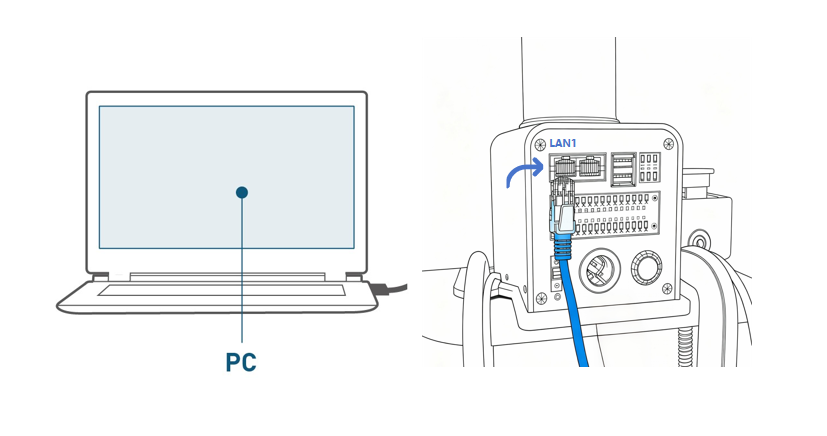
After connecting the network cable, you need to manually configure the machine's
static IPfor subsequentSSH connection. The configuration steps are as follows:Open Control Panel, select
Network and Internet, and then clickView network status and tasks.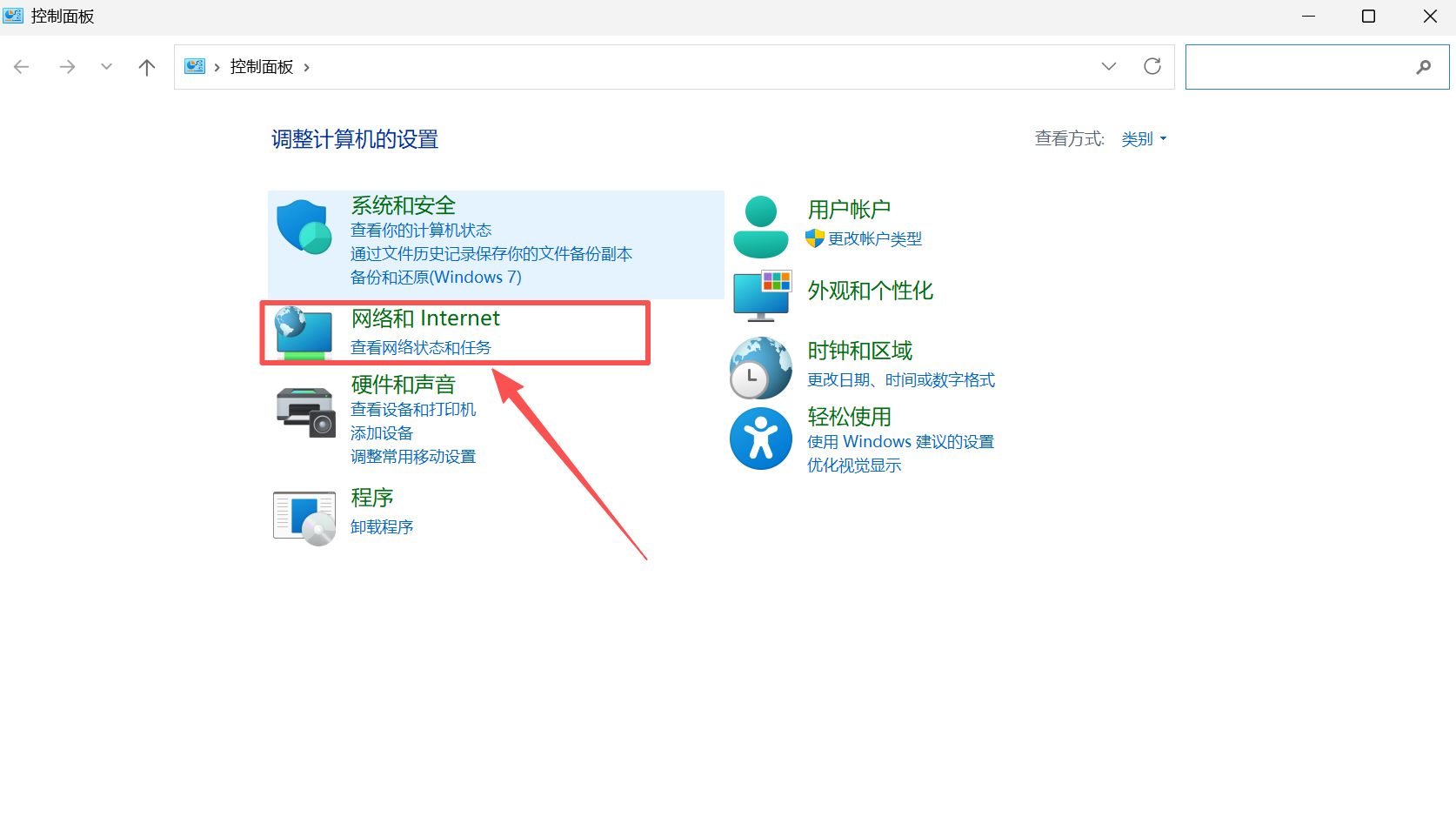
Now you are in the
Network and Sharing Centerpanel. SelectChange adapter settingsin the left menu bar and click to open theNetwork Connectionspanel.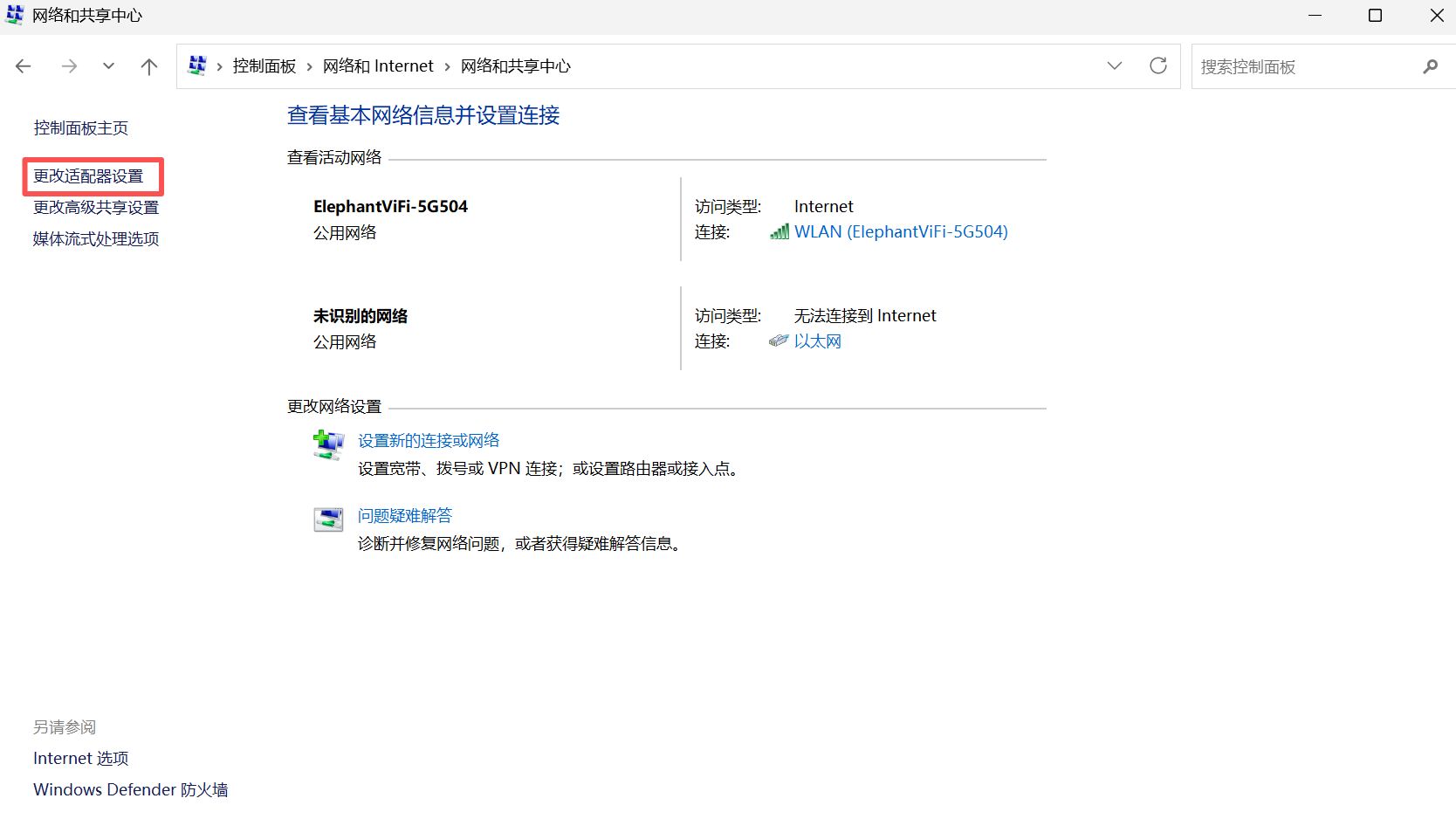
Select
Ethernetand right-click to open thePropertiespanel. Then, left-click to selectInternet Protocol Version 4 (TCP/IPv4), and finally click the Properties button at the bottom.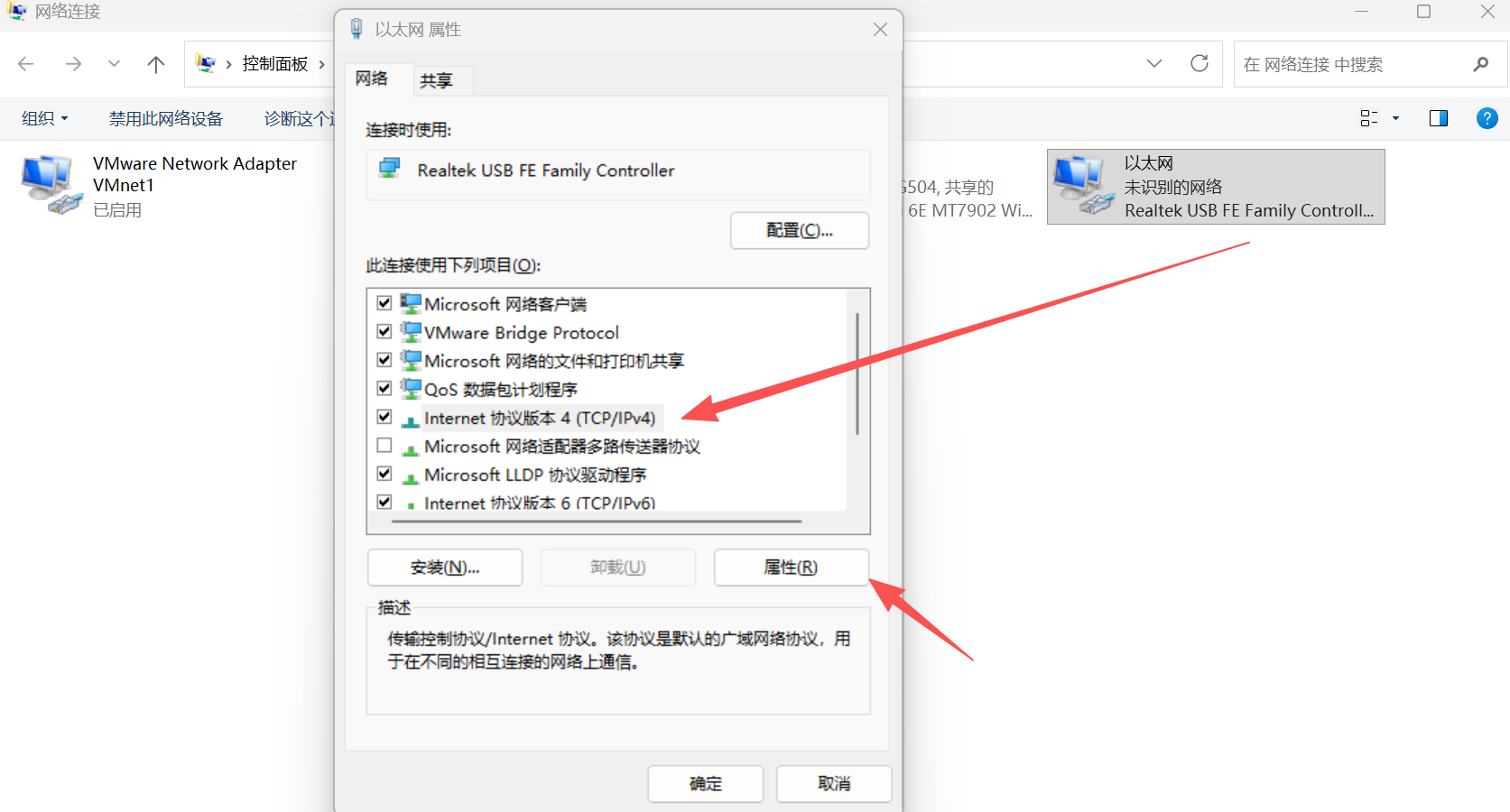
In the Properties panel, click
Use the following IP address (S), configure a static IP address192.168.0.x, and a subnet mask255.255.255.0.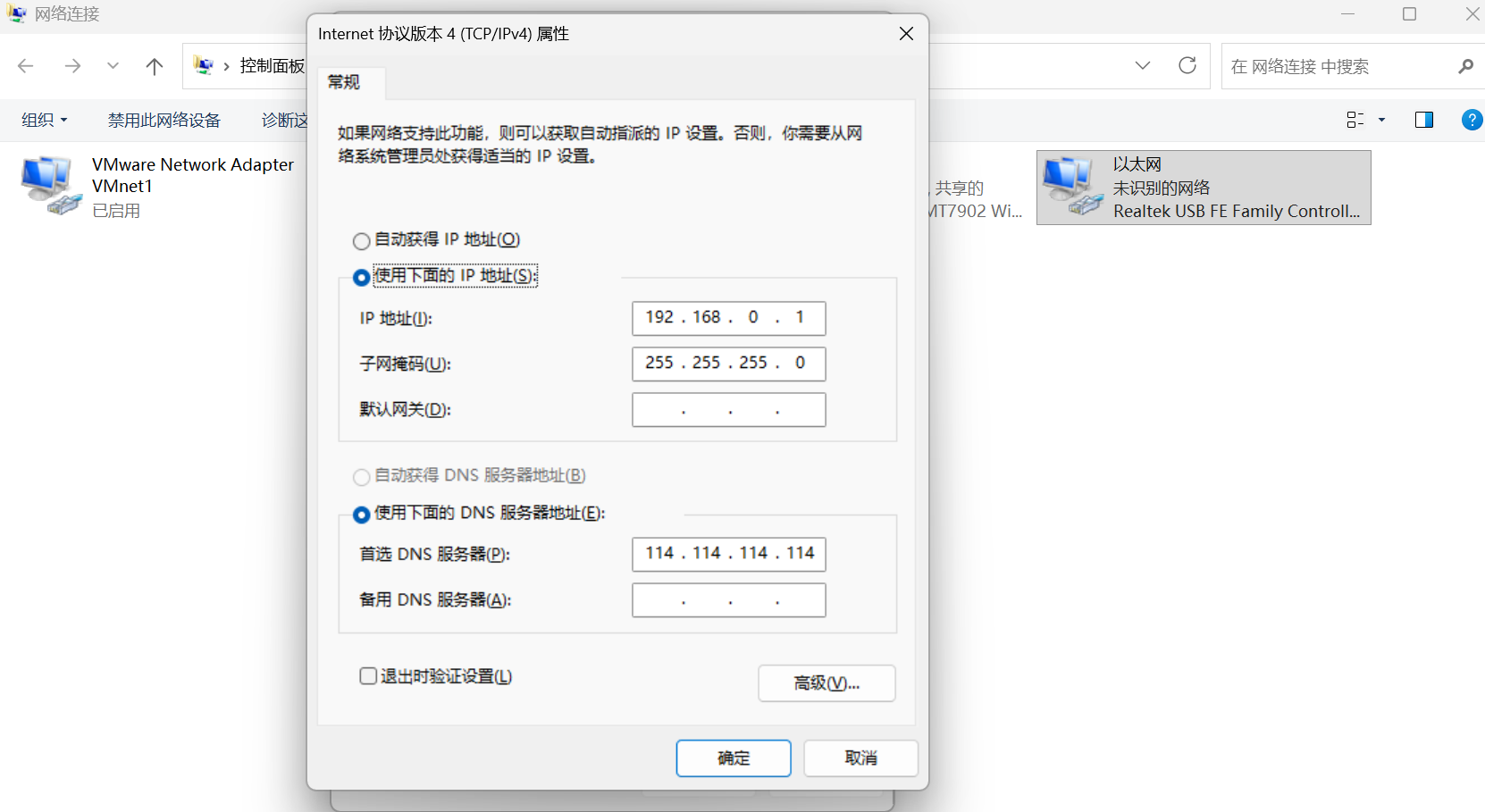
Finally, click OK to close the corresponding configuration panel.
To verify successful static IP configuration, press
Win+Rto open the Run window, then typecmdto open the Windows Command Prompt. Typeping 192.168.0.232and press Enter. If the following output is displayed, the static IP configuration is successful and the network cable connection is normal.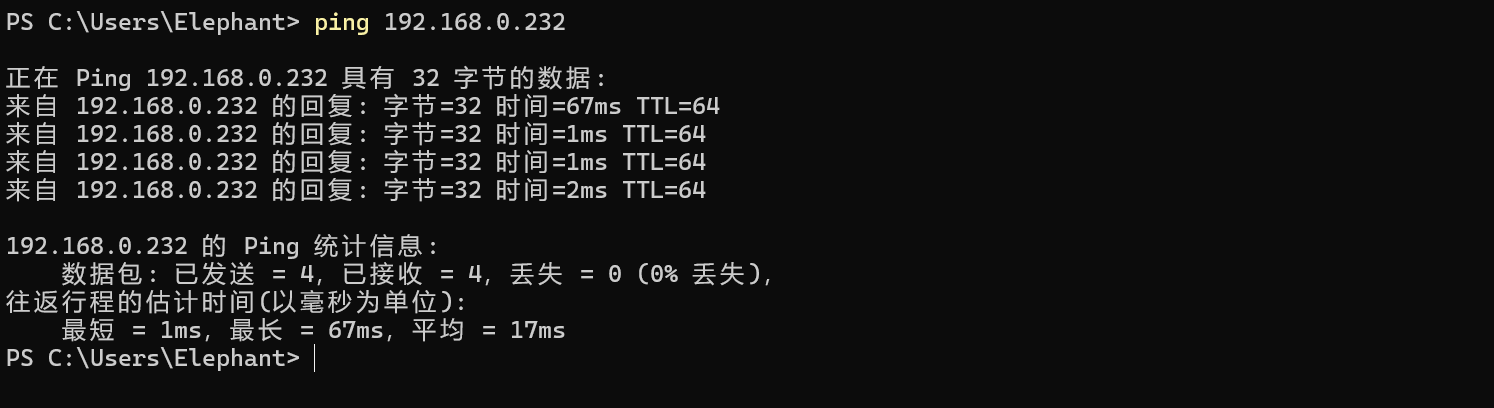
Starting the Server Program
Note: The system has already configured to enable automatic startup. The following steps are for manual startup instructions. - You can log in to the machine system via SSH to operate and control it. This chapter uses the MobaXterm graphical tool as an example.
Open the application, click "Session" in the upper left corner to bring up the panel, select "SSH" connection, enter the corresponding "Remote host," and click "Confirm."
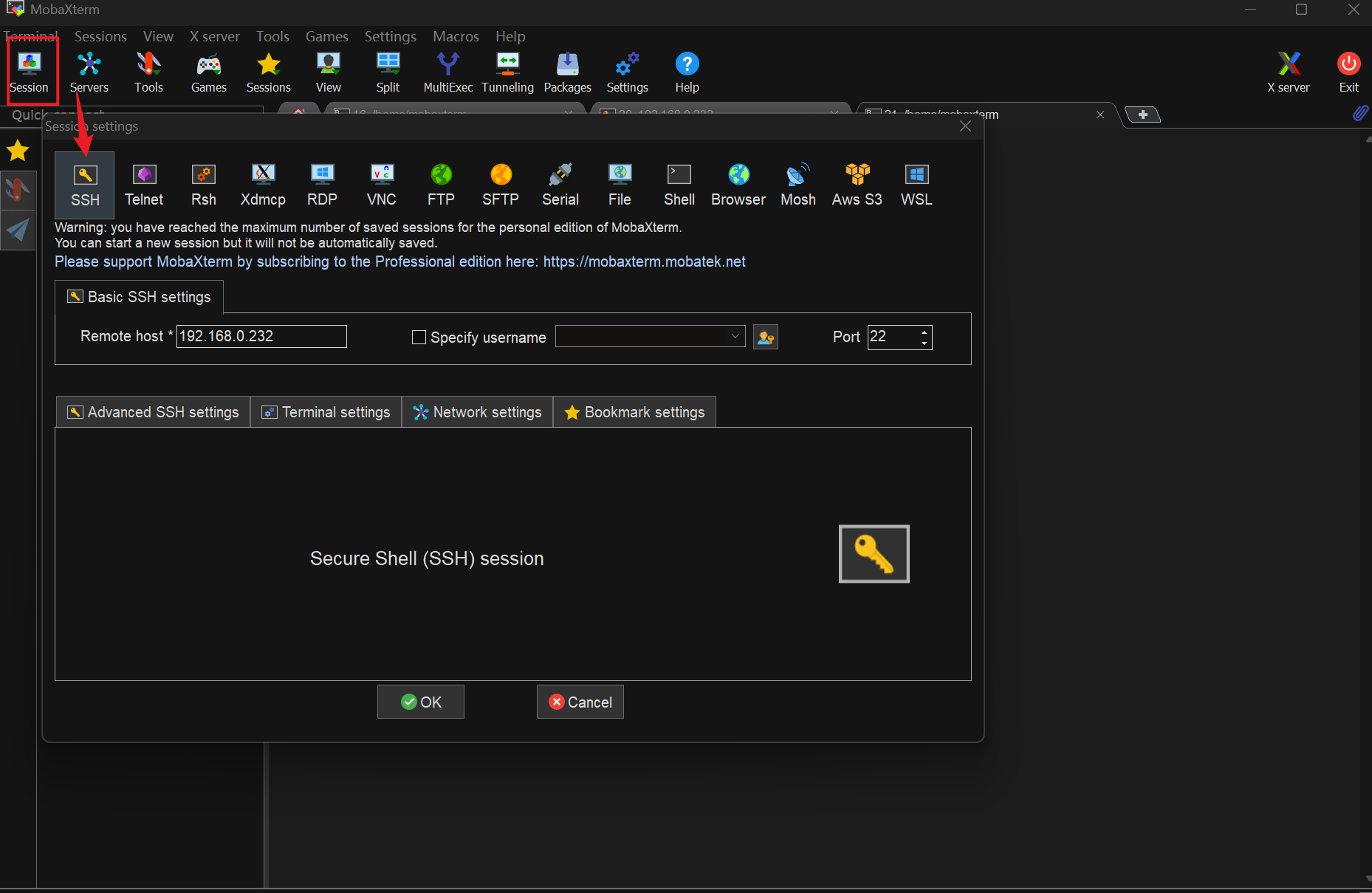
After a successful connection, the panel will ask you to enter your "username" and "password" (both are "root" by default) and press Enter to log in to the system.
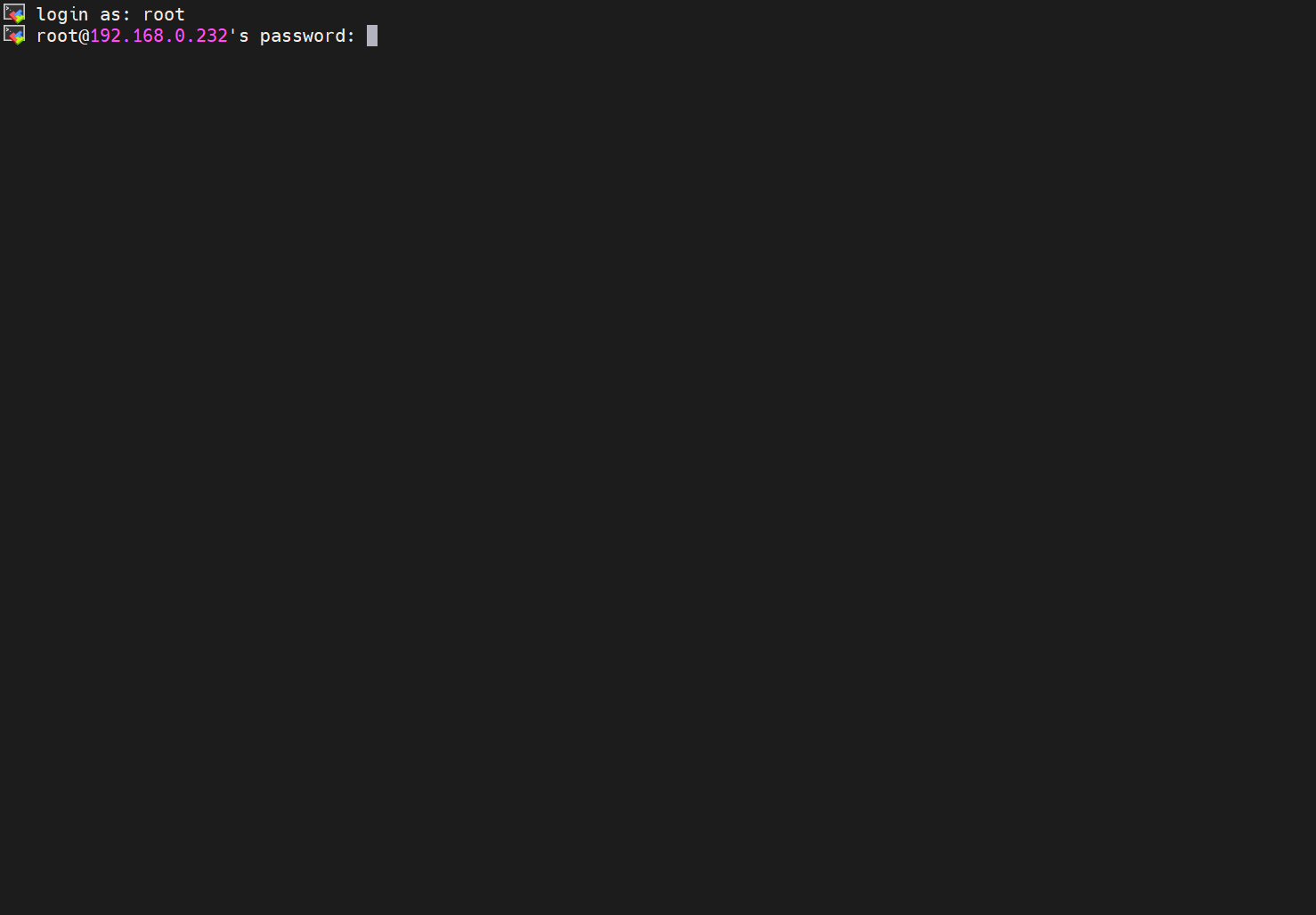
The MyCobot Pro 450 server program is located by default in the following path:
/root/MyCobot450/bin. Then, use the command to view the files in the current directory to check if the corresponding executable file exists. The executable file name is usuallyMyCobotPro.The MyCobot Pro 450 server program is located by default in the following path:
/root/MyCobot450/bin. Use the command to view the files in the current directory to check if the correspondingexecutable fileexists. The executable file name is usuallyMyCobotPro.cd /root/MyCobot450/bin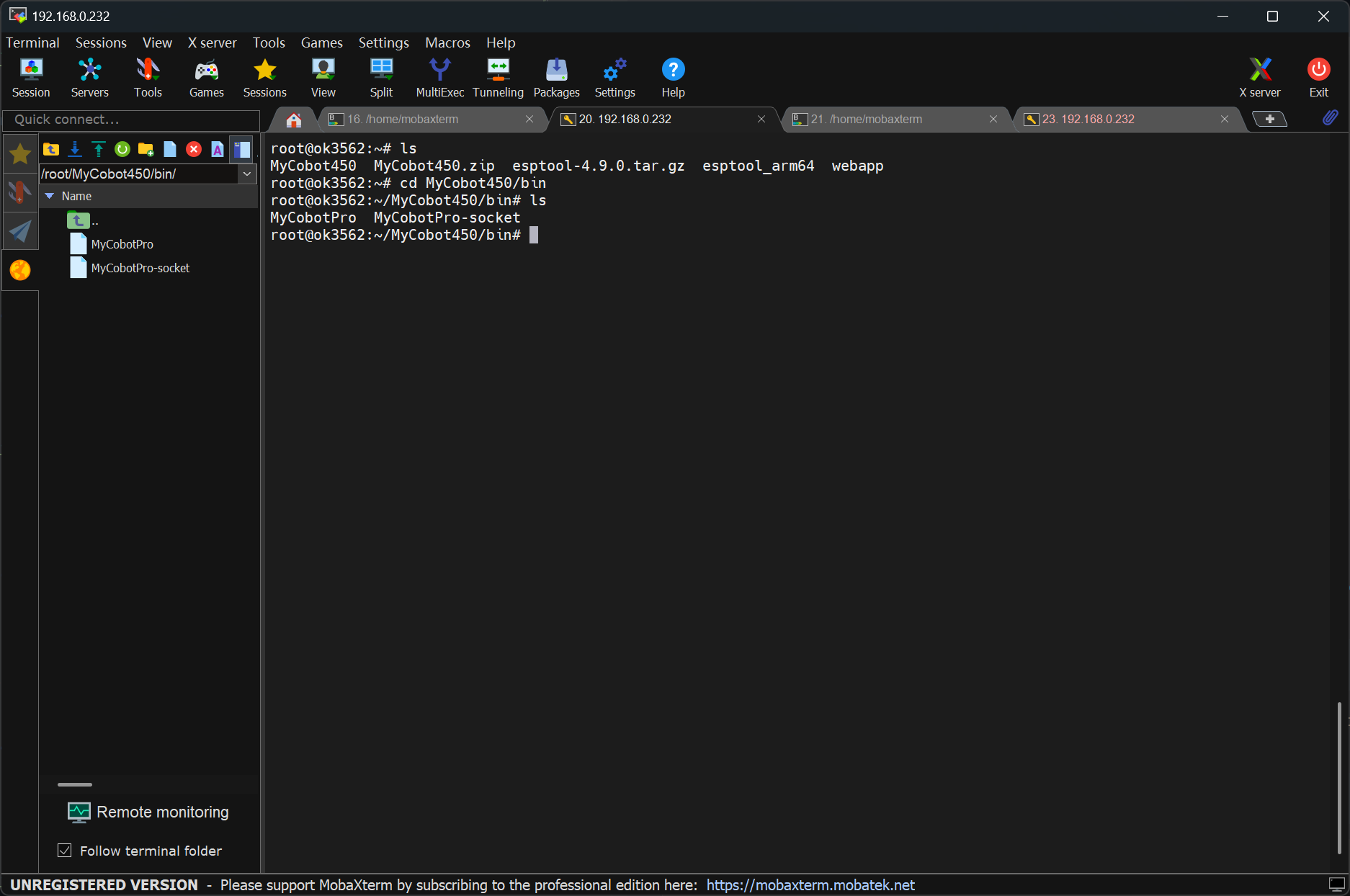
lsExecuting the server file, if the terminal does not report any error messages and outputs the following information, then the file has run successfully.
./MyCobotPro
Executing the robot control service script. If the terminal outputs the following information without errors, the file has run successfully.
/opt/webapp/api/launcher.sh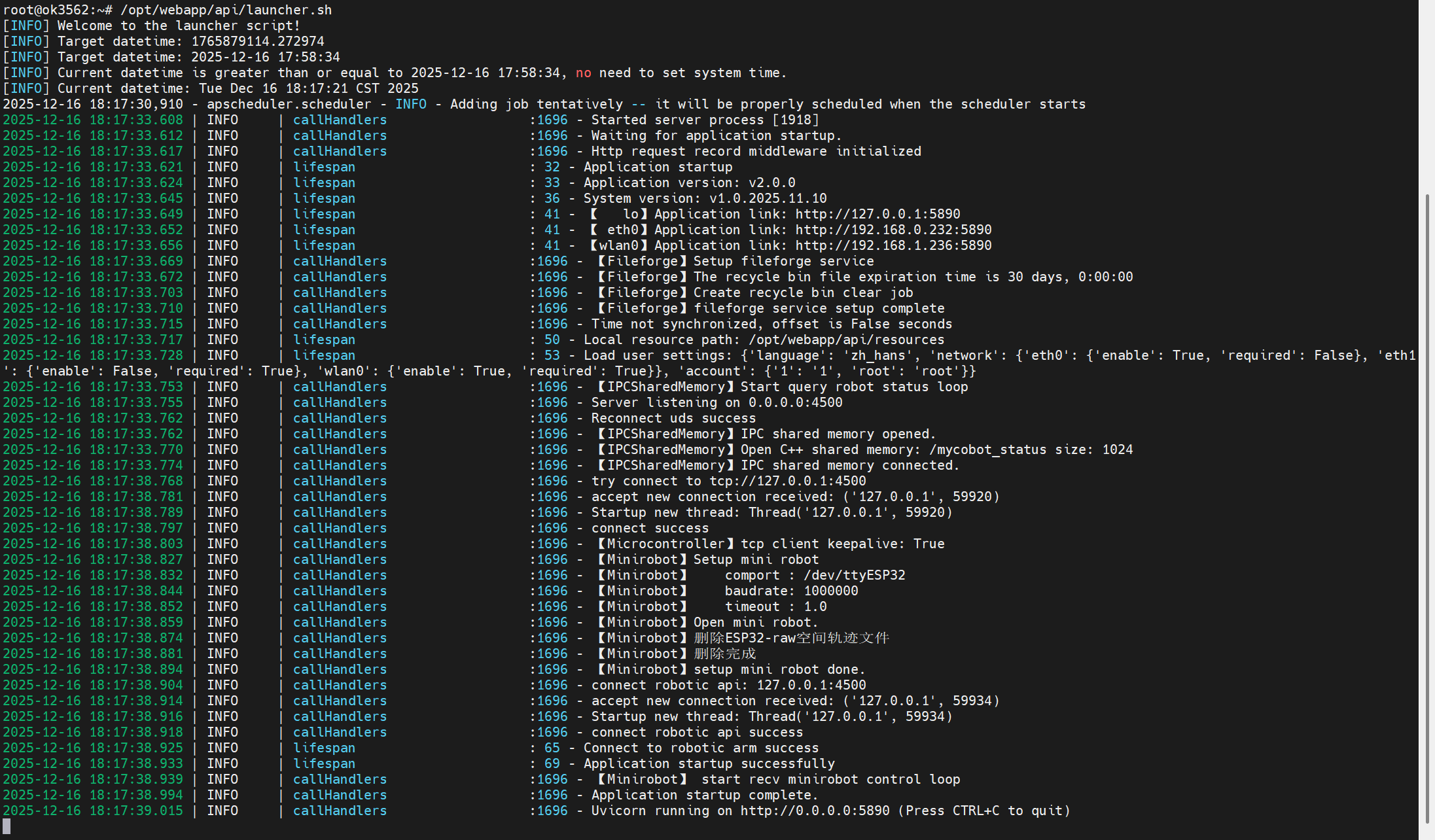
Of course, you can also log in and operate using the cmd panel. The specific steps are as follows (taking Windows as an example):
Use win + r to open the cmd panel and enter the following command.
Enter
ssh-keygen -R 192.168.0.232Enter
ssh root@192.168.0.232
Then enter the login password root
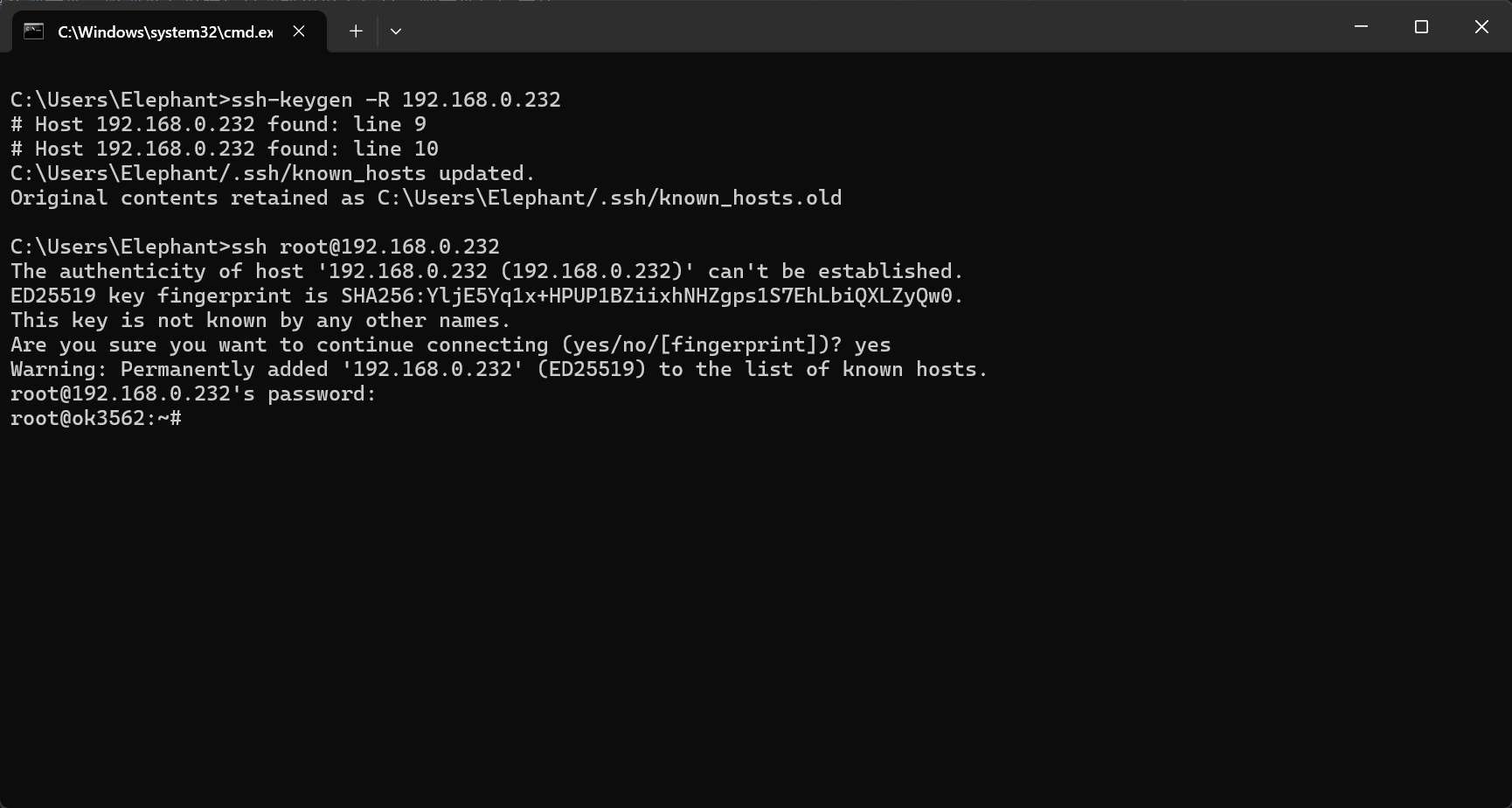
Next, follow the steps above to run the server program. By default, the server file and robot control services start automatically on boot.
Software Configuration
Before using myStudio Pro, please ensure that a browser, such as Chrome / Edge / Safari or other modern browsers, is installed on your computer.
Accessing myStudio Pro
myStudio Pro is a web application that does not require installation and can be used in a browser via IP address.
In the SSH terminal, type
ifconfigto view, configure, and manage network interface parameters, and confirm theIP.ifconfig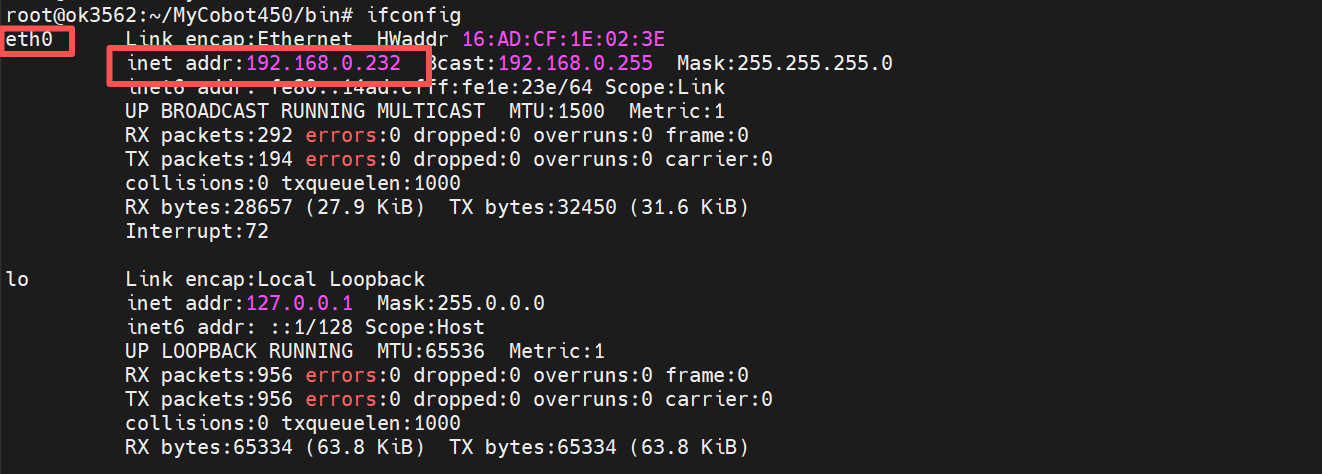
Then enter the
IPand port number (default deployment to port 8000) into the browser'sURLaddress. Note: You need to include thehttpprotocol. The complete address is as follows:http://<robotic arm system IP>:<port number>Note: If you are using the LAN1 network port to access myStudio Pro, the system will automatically log in. After logging in, you will automatically enter the main page.
When you are using the LAN2 or WLAN network port to access myStudio Pro, you need to log in first. The default username and password are
adminand123respectively. When the browser loads the login page, enter the default password and click theloginbutton to log in.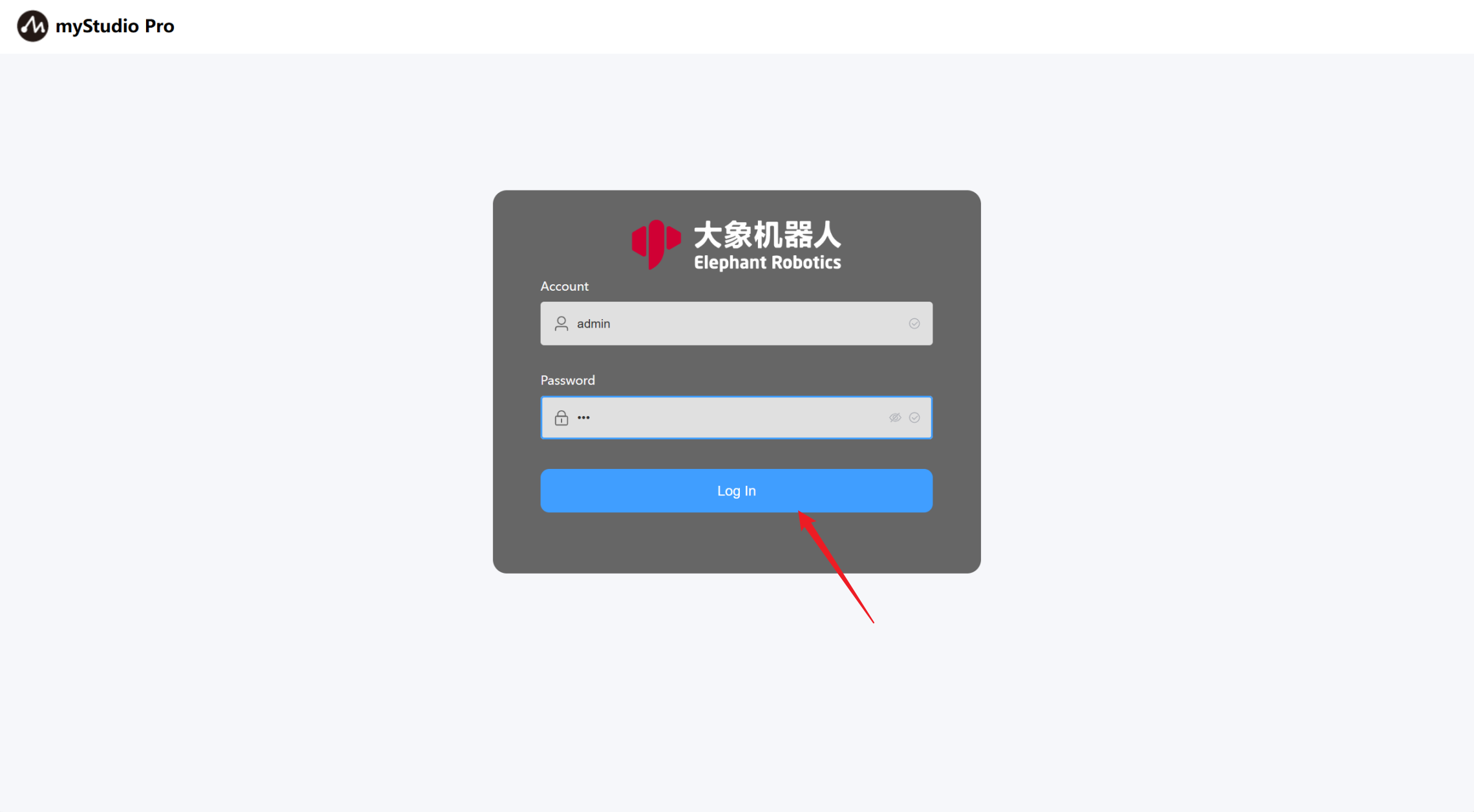
When the browser renders the page, it means that myStudio Pro has been successfully accessed.