System instruction manual
5.1.1 Robot system introduction
System
- Ubuntu is the most widely used linux operating system for personal desktop operating systems. It is a good choice for beginners to familiarise themselves with the linux environment or some embedded hardware operating systems.
功能介绍
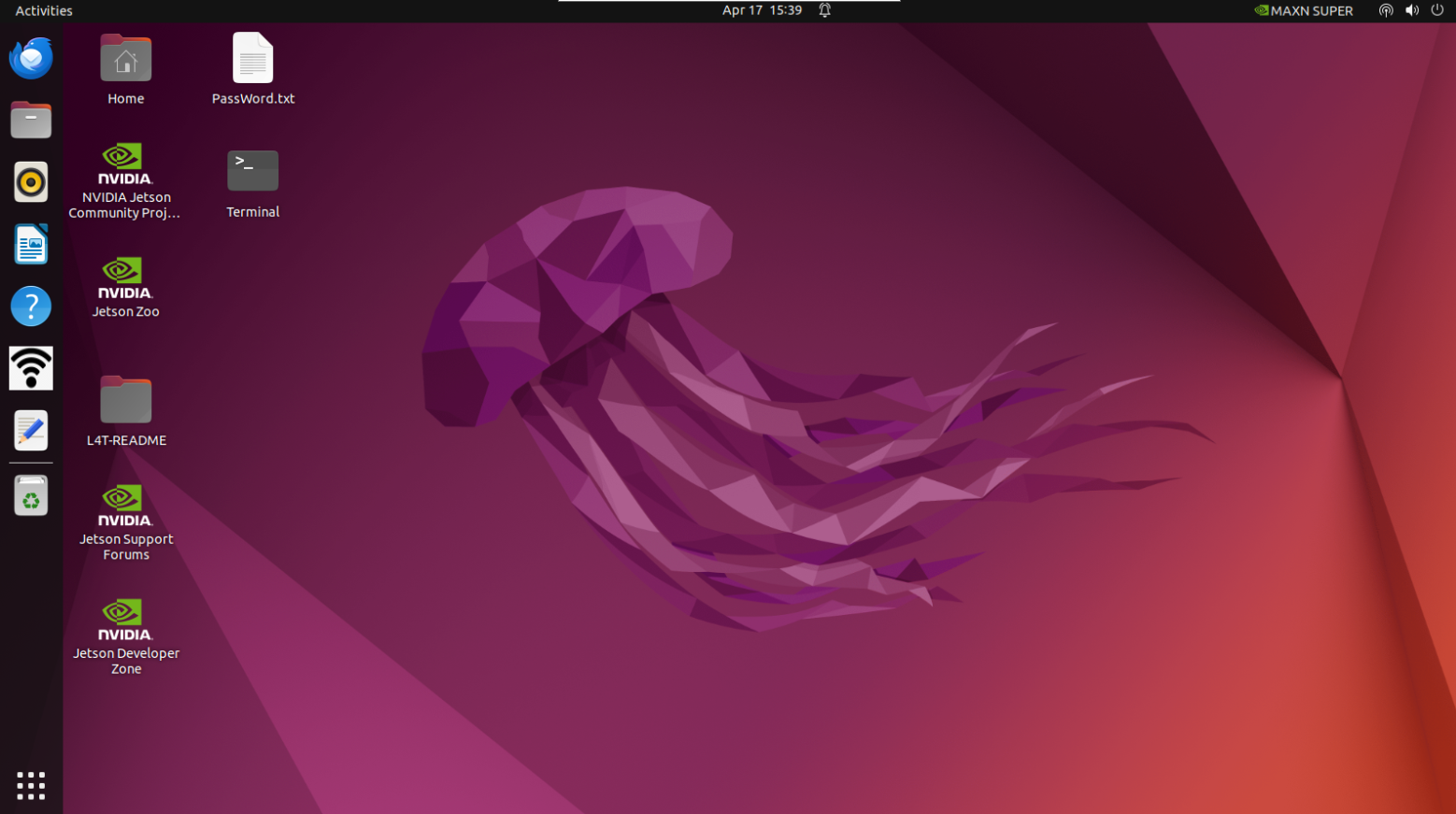
myStudio:Firmware burning software for updating and burning new firmware.
myBlockly:Graphical programming software, can be directly by dragging building blocks to form running code, control the robot arm
ROS2 humble:Directly enter the compiled ROS2 environment, you can directly enter the corresponding instructions, run the corresponding ROS2 code
HotSpot_ON/OFF:Hotspot switch, click to turn on/off the hotspot function, the hotspot name is ElephantRobotics_AGVPlus_AP_XXXX
5.1.2 System password description
account password & VNC password & SSH password & root account password
- Password:Elephant
How to change password
change account password
- Use the shortcut key
ctrl + alt + Tto open the terminal - Enter
passwd - Enter the new password twice
- Use the shortcut key
change vnc password
- Use the shortcut key
ctrl + alt + Tto open the terminal - Enter
vncpasswd - Enter the new password twice
- Use the shortcut key
change ssh password
- For SSH remote connection, the password of the administrator account is entered. You do not need to change the password separately
change root account password
- Use the shortcut key
ctrl + alt + Tto open the terminal - Enter
sudo passwd - Enter the new password twice
- Use the shortcut key
5.1.3 VNC
VNC Introduction
- Is a remote control software, generally used to remotely solve computer problems or software debugging
VNC Port
- When the robot arm and PC are connected to the same WiFi, the IP address of the robot arm is the port
Connect VNC
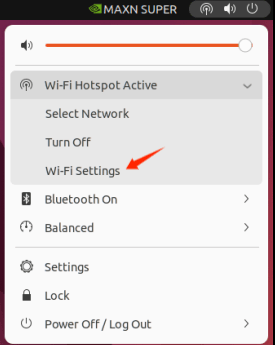
There are two wireless connection modes. The first mode requires an external monitor to perform certain operations on the system. The specific steps are as follows: Open Settings, find 'Wi-Fi Settings' and click, then click 'Turn off hotspot' to disconnect from the myAGV Plus hotspot.
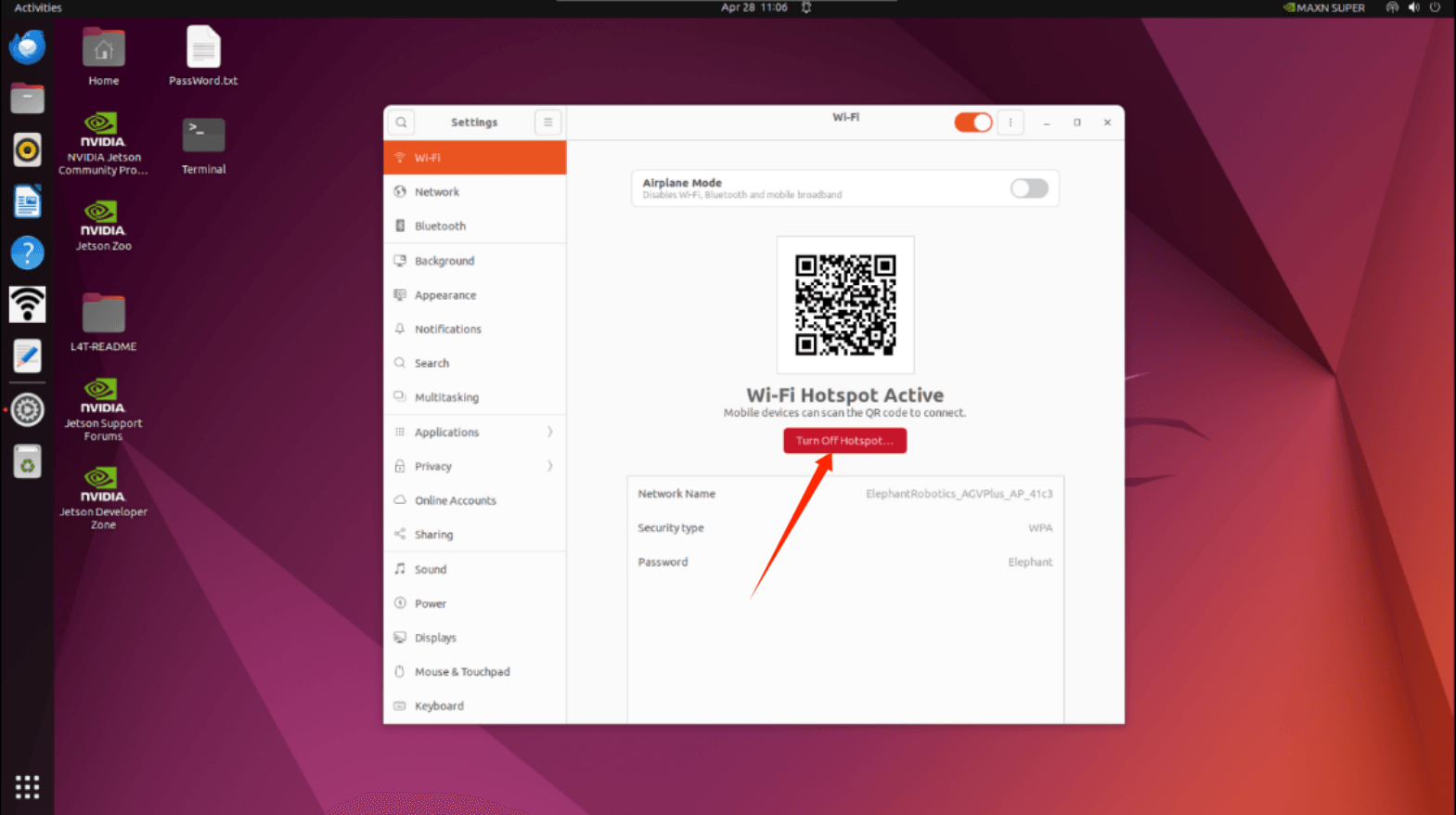
Turning off the car hotspot will display the currently available WiFi. Click on the WiFi you want to connect to, enter the password, and then click the button as shown in the picture.
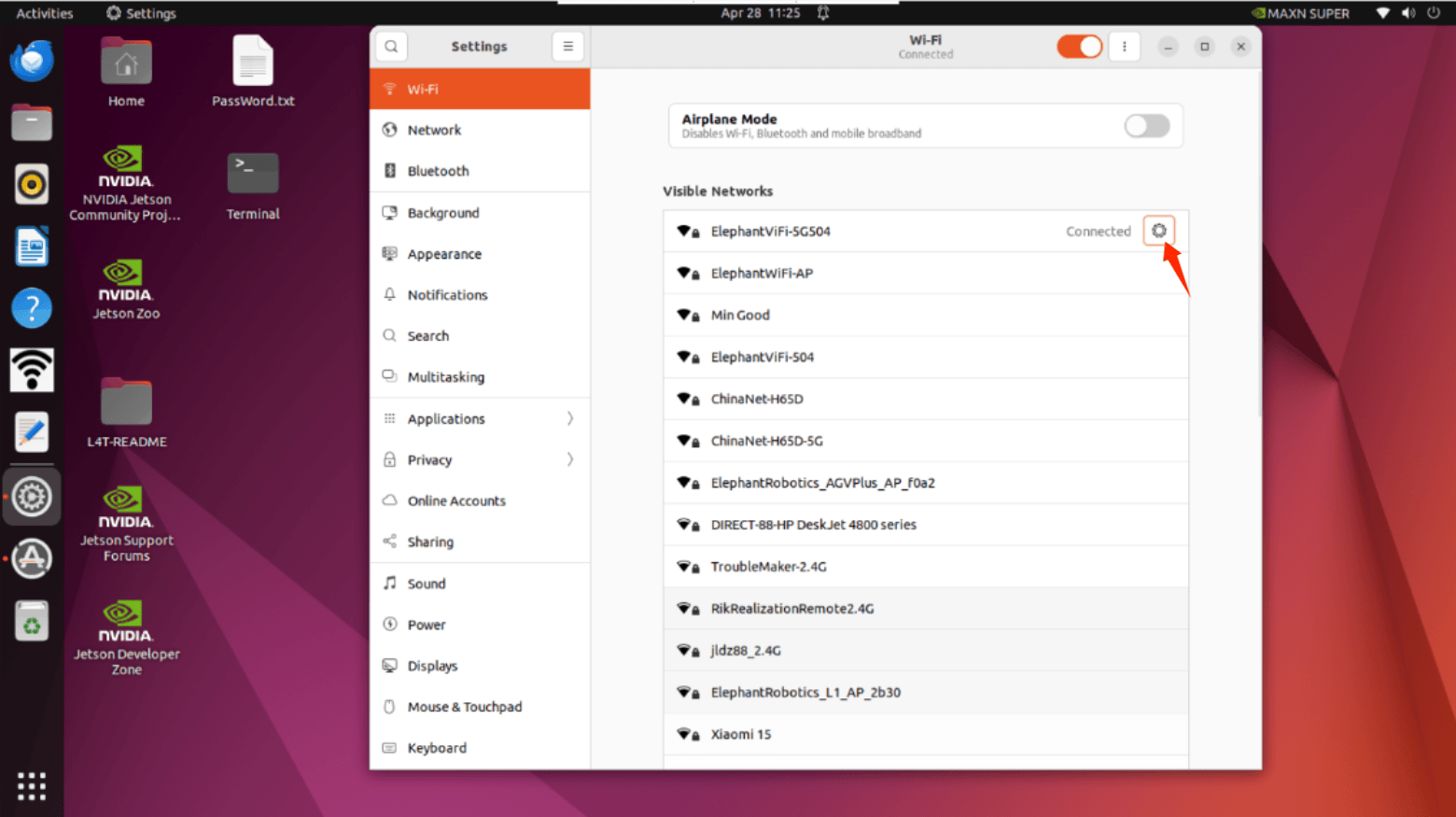
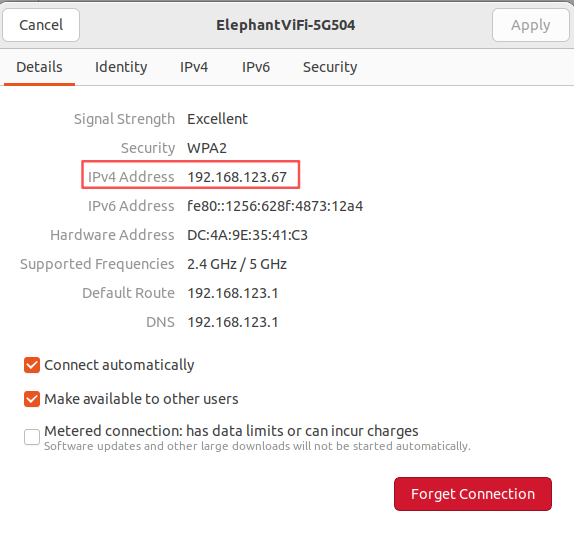
After clicking, you can view the IP address. As shown in the example, "192.168.123.67" is the current IP address of the robot.
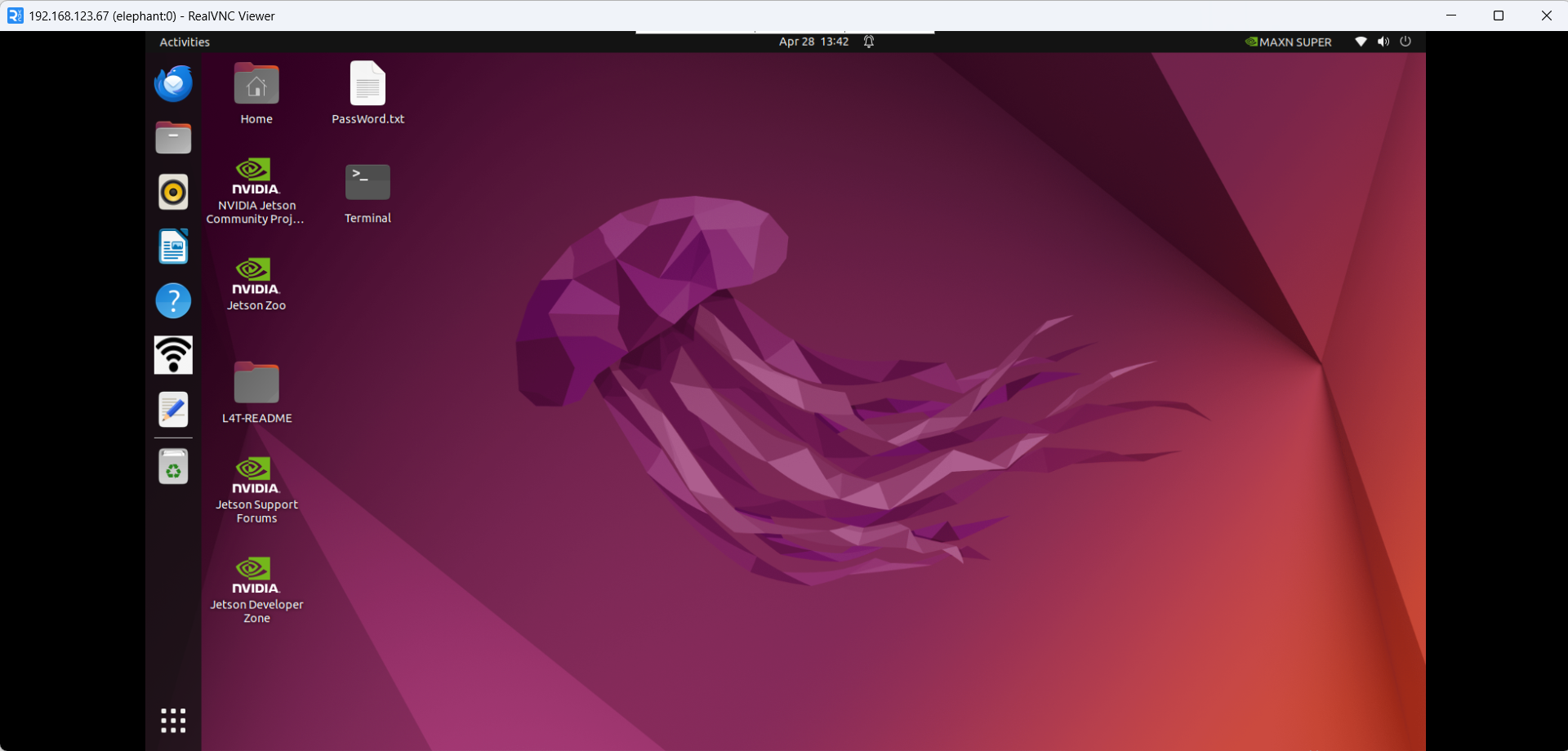
Connect the computer and the robot to the same WiFi, open the VNC Viewer, enter the IP address (for example: enter **192.168.123.67**), enter the password **Elephant**, and by default do not specify a username. Here is an example of a successful connection:
The second method does not require connecting a monitor. You can directly connect the Ubuntu system hotspot to the PC for remote control. However, this connection method does not have internet browsing functionality; it can only remotely control the robotic arm system. The specific steps are as follows:
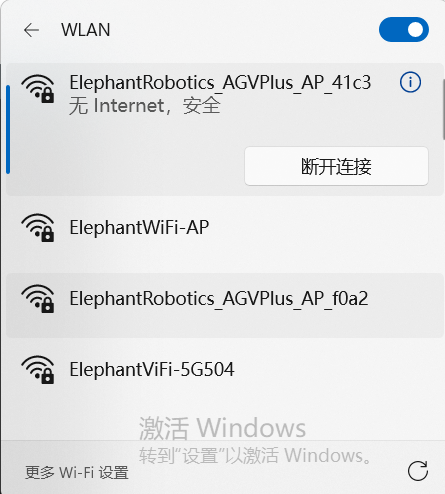
Connect to the hotspot ElephantRobotics_AGVPlus_AP_XXXX and enter the password Elephant
Open the VNC viewer, enter the IP address 10.42.0.1, then enter the password Elephant, with no username specified by default. Below is an example of a successful connection:
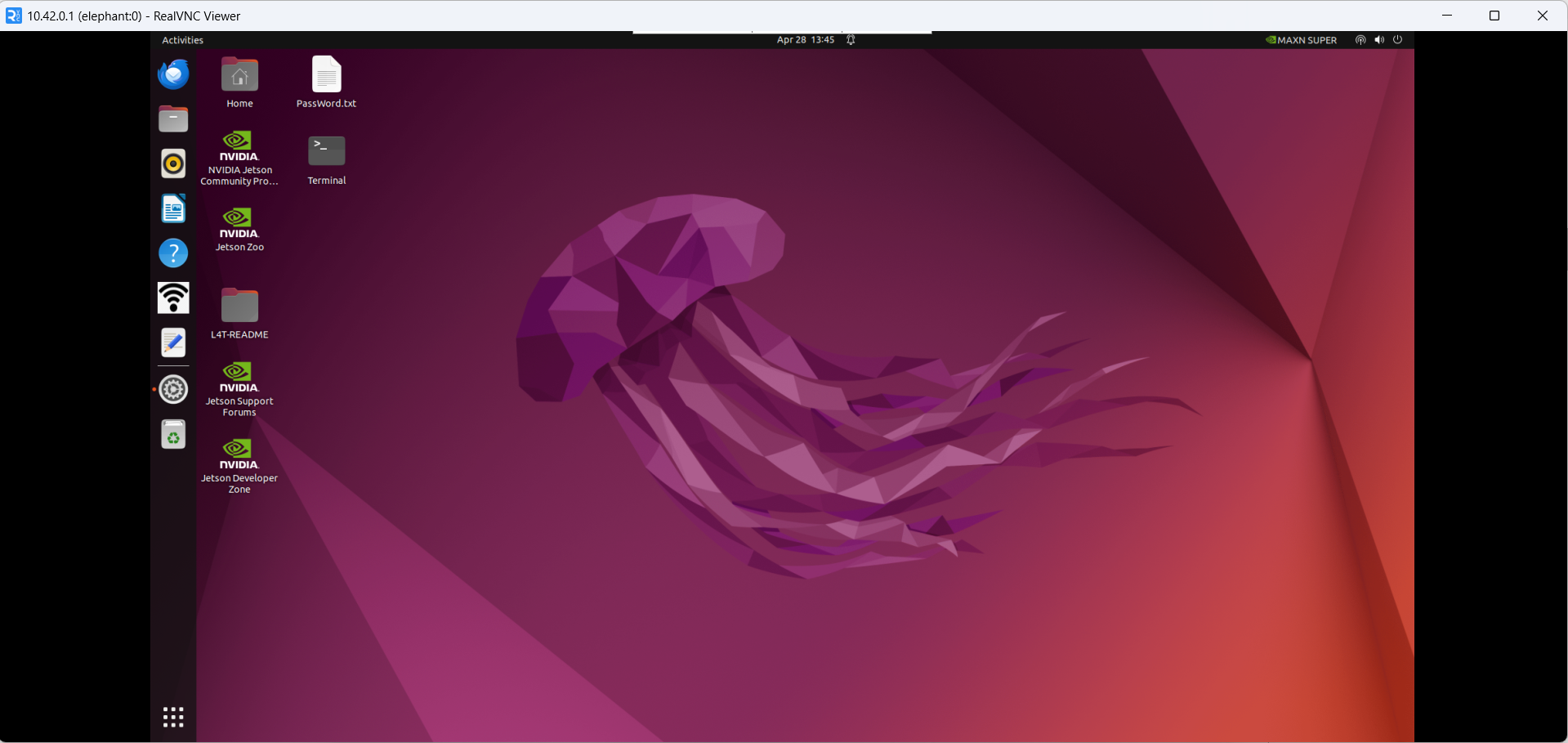
How can I improve connection fluency
- The fluency of the remote connection depends on the fluency of the connected WiFi. It is recommended to connect to a stable WiFi for remote control
5.1.4 SSH
SSH Introduction
- SSH is a network protocol used for encrypted logins between computers. If a user logs in from a local computer to another remote computer using SSH, we can assume that this login is secure, even if it is intercepted in the middle, the password will not be disclosed.
SSH Port
- The default port number is 22
SSH Connect
Confirm the IP address of the robot by following instructions in 5.1.2 VNC
Click
win + Rand enter "cmd"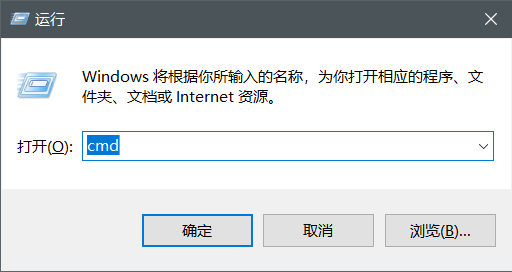
After input, click OK to open the shell interface
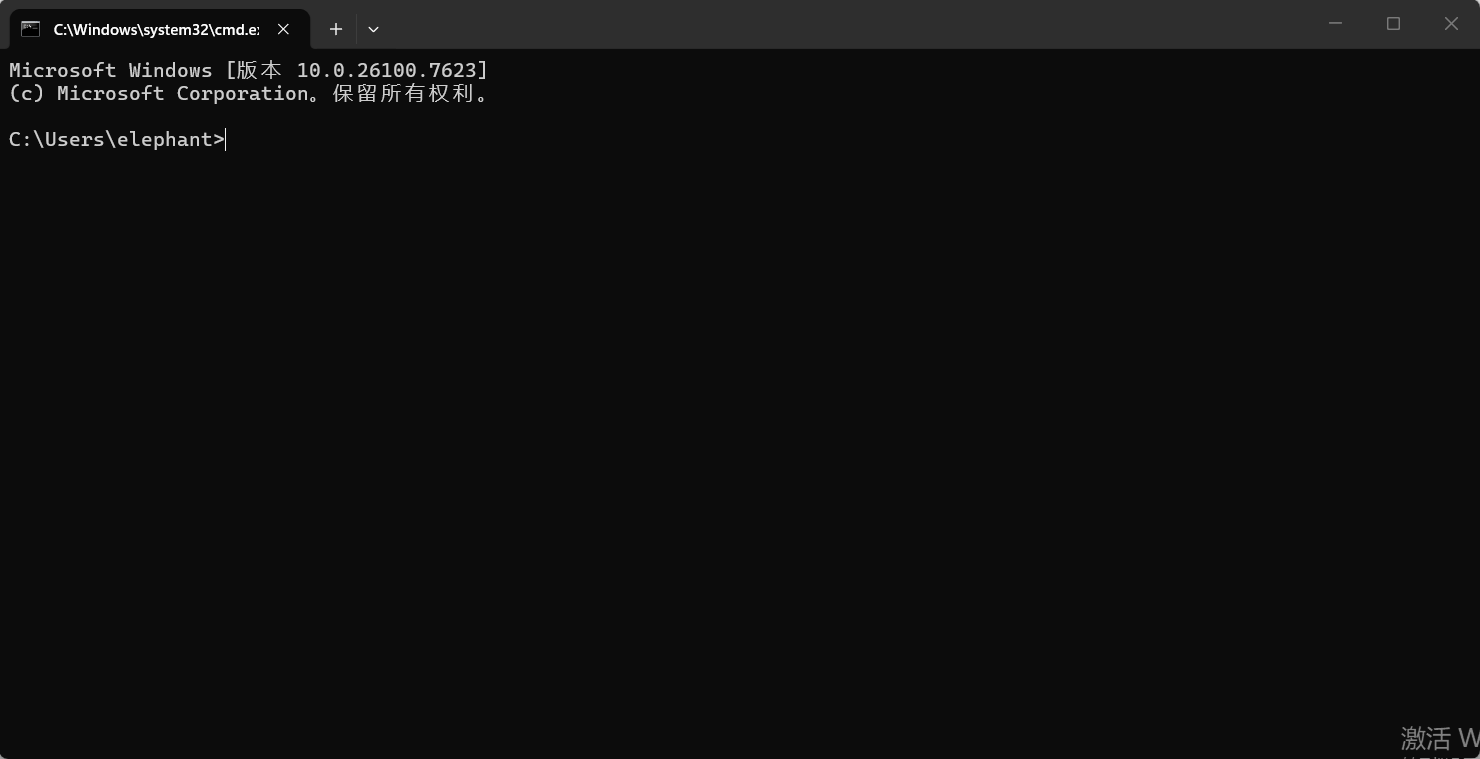
Enter
ssh elephant@IP address, then pressEnter(the IP address is mainly displayed by myAGV Plus, the one in the picture is just an example).
Enter password
Elephant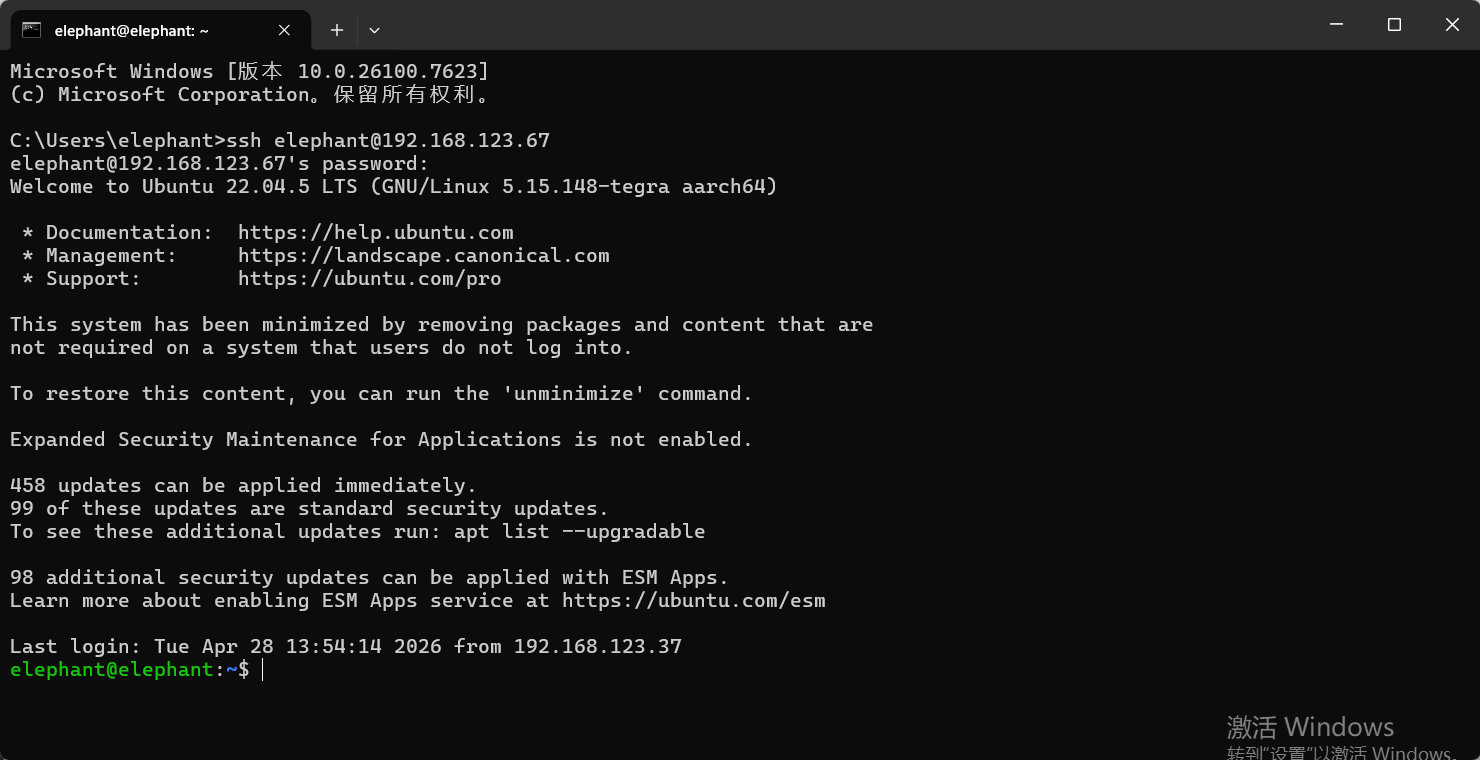
As shown in the figure above, myAGV Plus has successfully connected via ssh
How can I improve connection fluency
- The fluency of the remote connection depends on the fluency of the connected WiFi. It is recommended to connect to a stable WiFi for remote controll
5.1.5 Network configuration
Default AP usage
- Turn on the robot power. By default, the system will connect to the built-in hotspot, with the hotspot name ElephantRobotics_AGVPlus_AP_XXXX and the current IP address 10.42.0.1. This hotspot does not support internet surfing, and both the transmission speed and information capacity are limited. Therefore, the final imaging may have some distortion and color deviation, and there may also be communication transmission delays, which are normal phenomena.
Connect to WLAN
Click "Turn off hotspot" to turn off the default hotspot
After turning off the default hotspot, the currently available WiFi will be displayed.
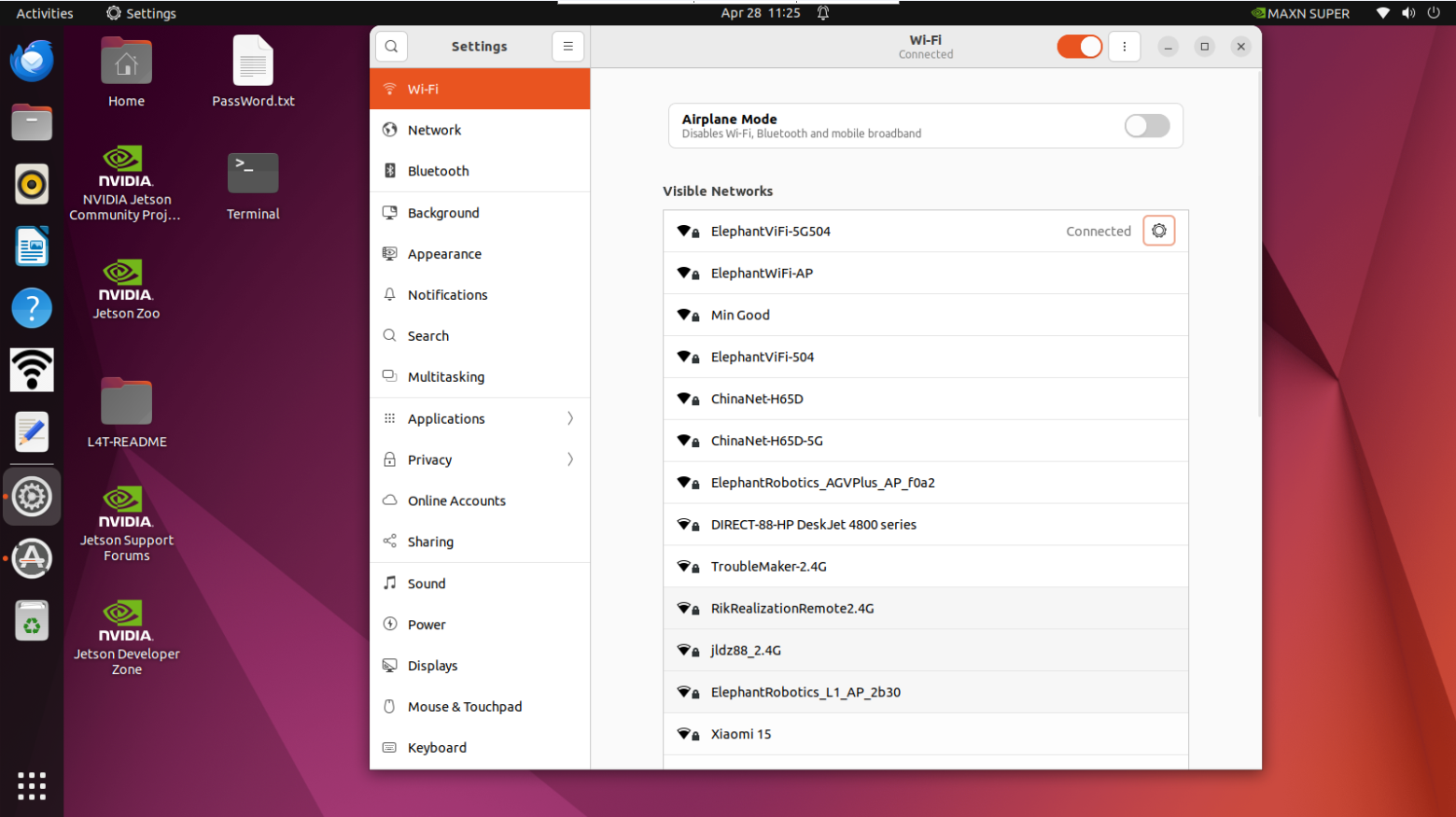
Click the WiFi you want to connect to and enter the WiFi password. After successfully connecting, click the settings icon to view the IP address.
As shown in the example, "192.168.123.67" is the robot's current IP address
Wired Network Connection
Turn on the robot power. By default, the robot connects to the hotspot configured by the system:
ElephantRobotics_AGVPlus_AP_XXXX
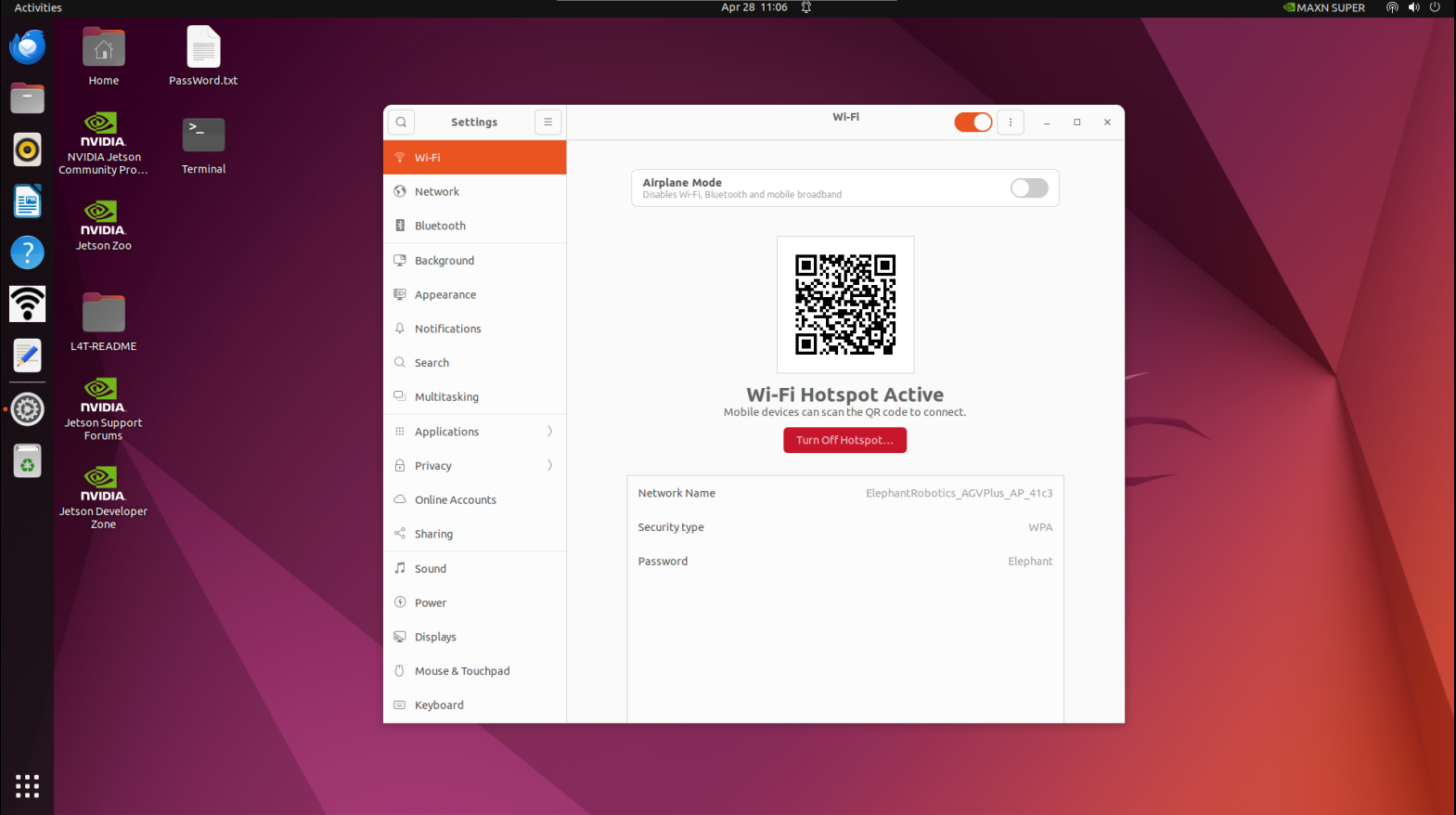
Click "Turn off hotspot" to disconnect from the default hotspot
Connect the network cable to the robot's network port
5.1.7 System resolution switch
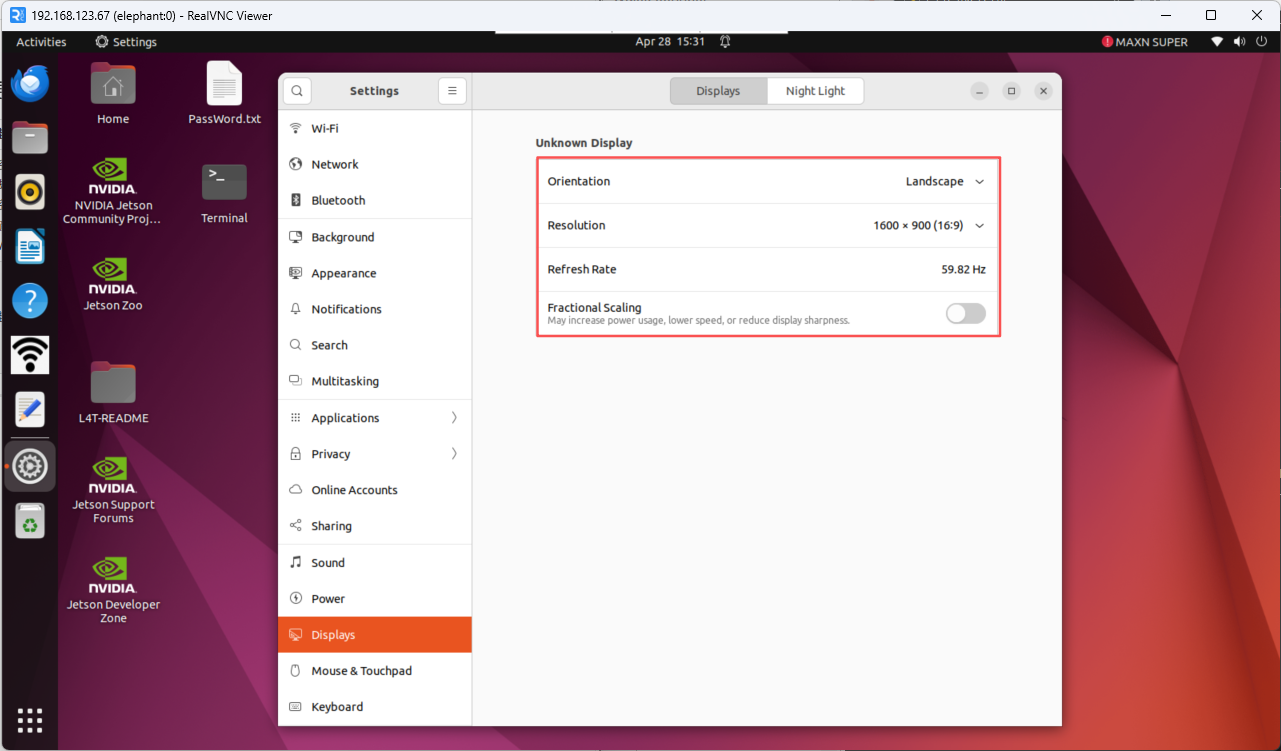
Click the icon in the upper right corner of the screen, select Settings, and enter the control panel
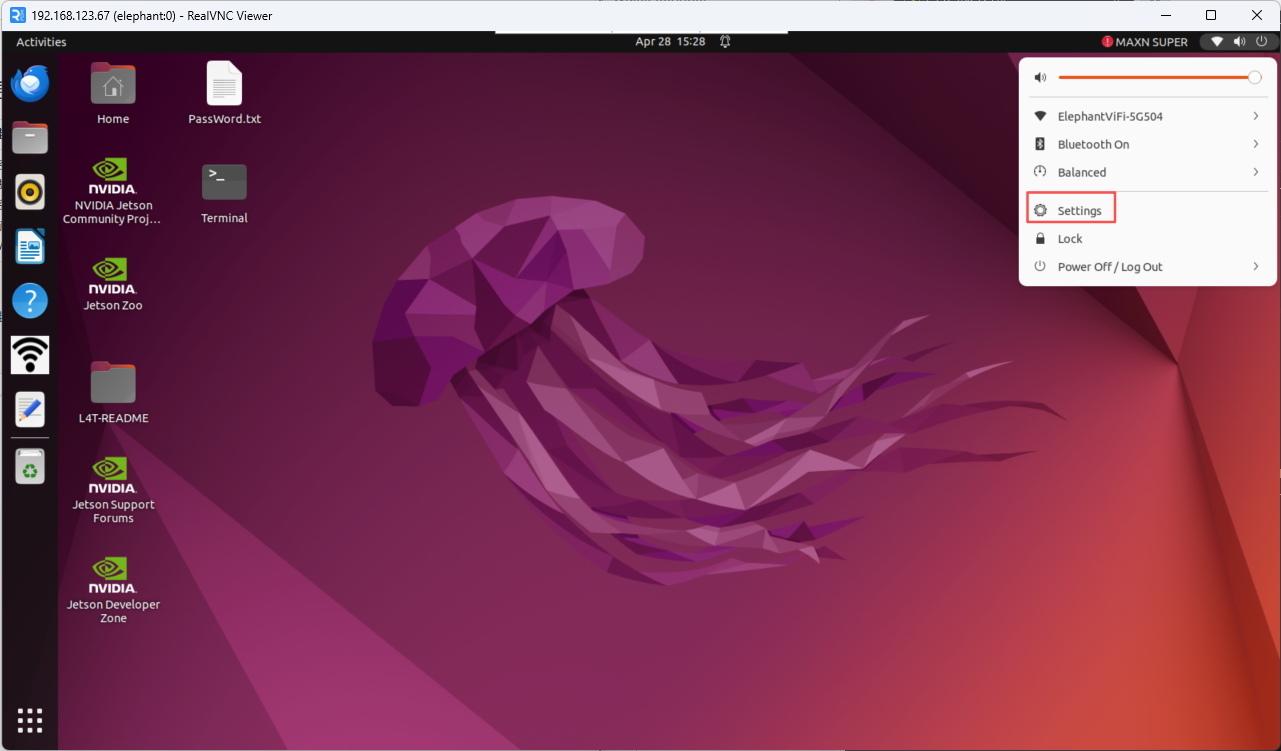
Select Display to switch to the desired resolution.