DragTeach
In the Program interface, select the DragTeach function with the asterisk, then press button C to enter DragTeach function.
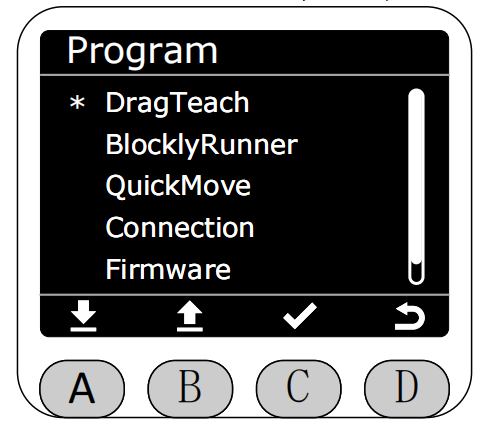
Press button C to enter DragTeach function.
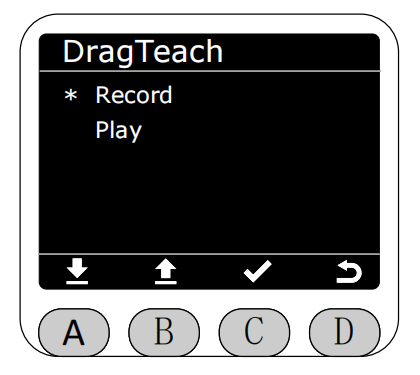
Select Record function, press button C to enter recording interface. It defaults to stop state upon entering. At this time, you can directly exit the interface. Press button A to start recording. Saving is not allowed during recording and pause. Maximum recording time is 120 seconds.
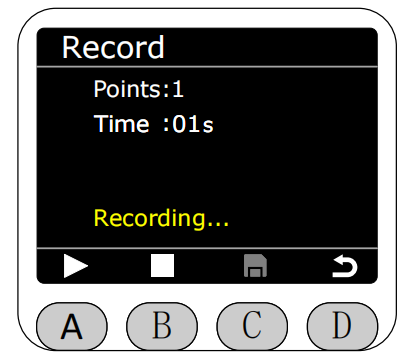
You can press button A to pause recording during recording.
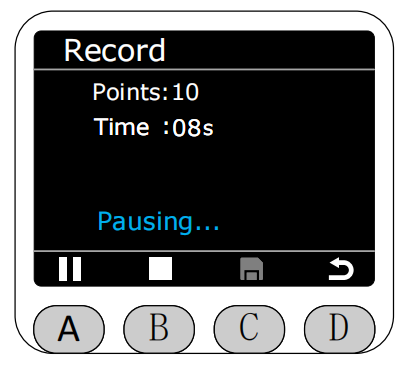
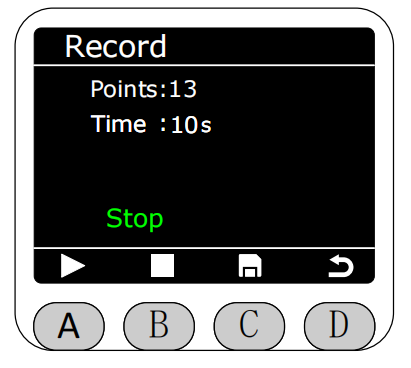
Press button B to stop recording. After stopping recording, you can press button C to save.
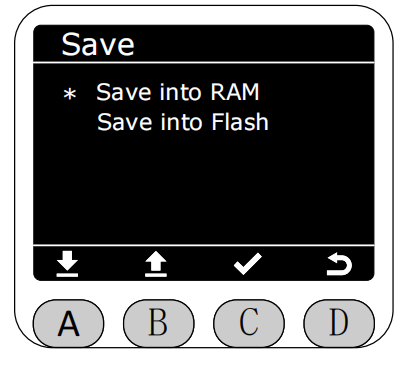
Then the interface will navigate to the save interface, saving method can choose to save in RAM or save in Flash. If saved in RAM, the recorded trajectory file will be lost after machine restart.
If saved in Flash, the recorded trajectory file will not be lost after machine restart. Additionally, trajectory files saved in Flash can be uploaded to the blocklyrunner folder, named TPL0001.cn ~ TPLXXXX.cn.
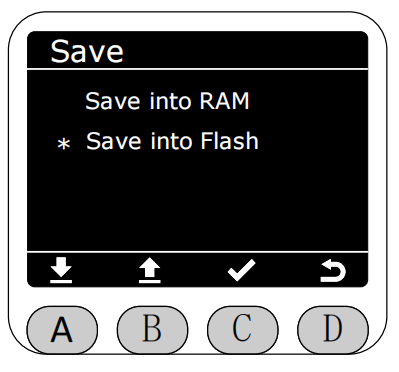
Each time saving to Flash will overwrite previous files, only retaining the latest recorded and saved trajectory file. Files uploaded to blocklyrunner will be named in TPLXXXX.cn format, where XXXX is the sequential save count. Deleting previous ones will not save to the previous number.
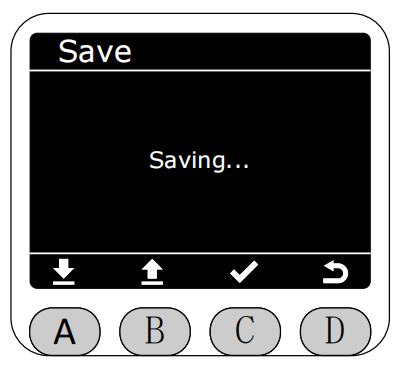
Select save path, press button C, it will display saving.
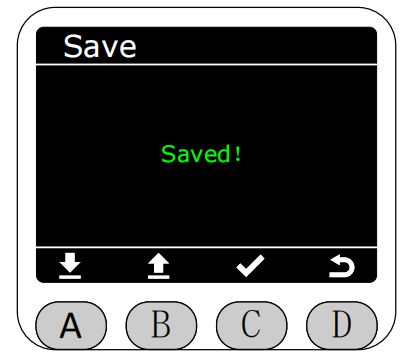
Wait approximately 3 seconds, it will display save success interface. This interface shows for about 2 seconds then automatically returns to DragTeach interface.
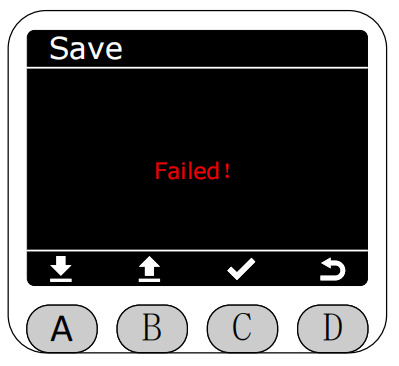
Displaying failure interface may indicate the SD card is loose, please try re-plugging.
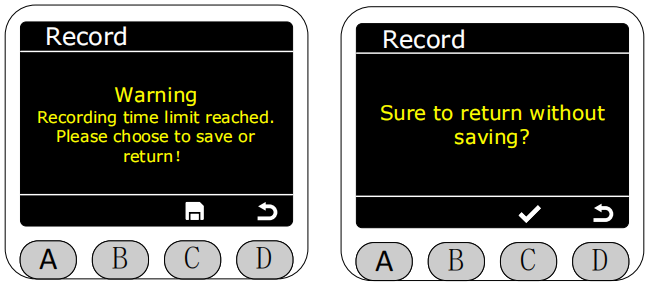
During recording, if recording time exceeds maximum duration or exit without saving, a warning interface will popup (can choose to save or exit directly without saving).
After saving trajectory file, you can select Play function in DragTeach interface to play the latest saved trajectory file.
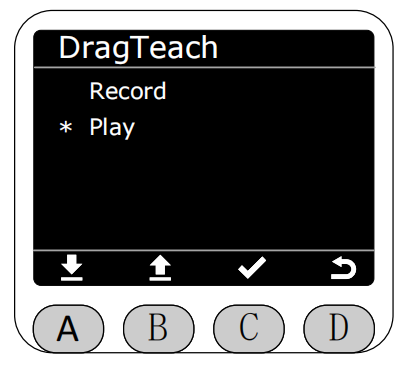
Trajectory playback defaults to infinite loop.
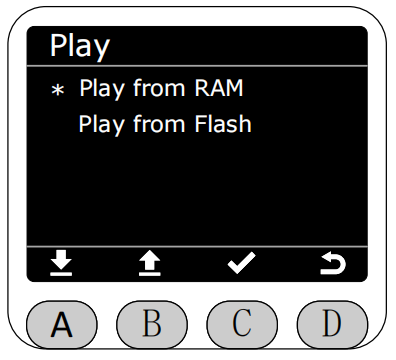
Play path can choose to play from RAM or play from Flash.
Enter play interface, press button A to start playing, and a countdown timer will be displayed (the countdown duration is the estimated playback duration of this trajectory).
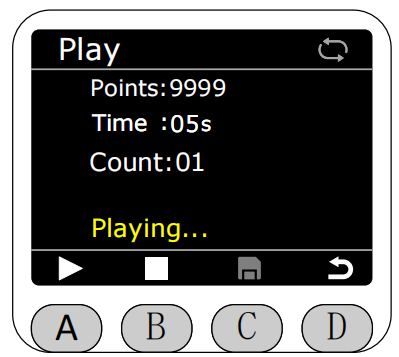
Press button A again during playback to pause playback.
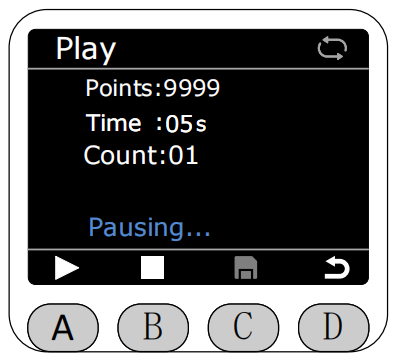
Press button B to stop playback.
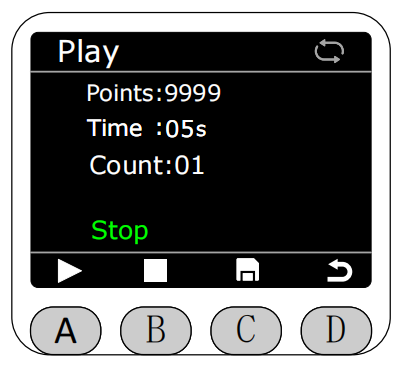
After stopping playback, you can choose whether to upload to BlocklyRunner. If upload is selected, this trajectory file will be stored in BlocklyRunner's folder. Files saved in RAM cannot be uploaded to BlocklyRunner's folder, can only be played in DragTeach interface. Files saved in Flash can be uploaded to BlocklyRunner's folder.
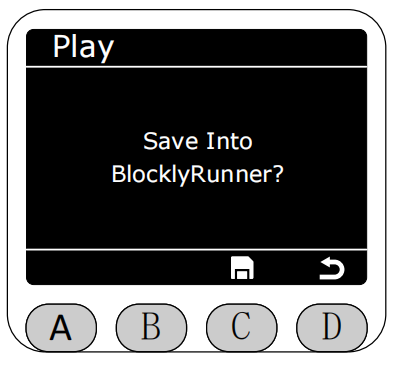
Select save path, press button C, it will display saving.
Wait approximately 3 seconds, it will display save success interface. This interface shows for about 2 seconds then automatically returns to play interface (if save failure is displayed, SD card may be loose, please try re-plugging).
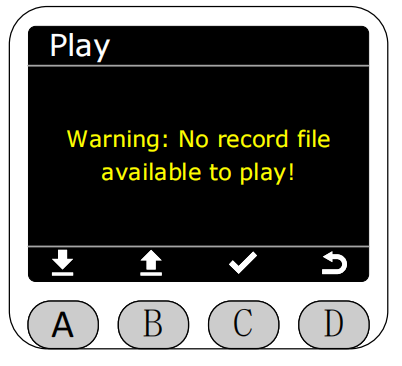
When trying to play trajectories, if both play paths have no files available for play, a warning will be displayed. If one path has no files while the other has, clicking will also prompt the corresponding warning.