Settings
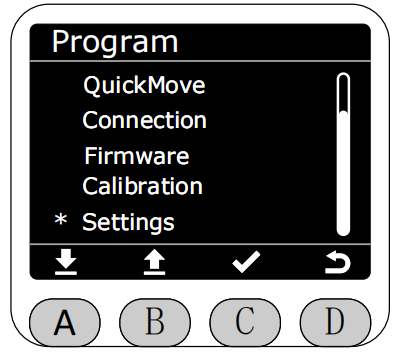
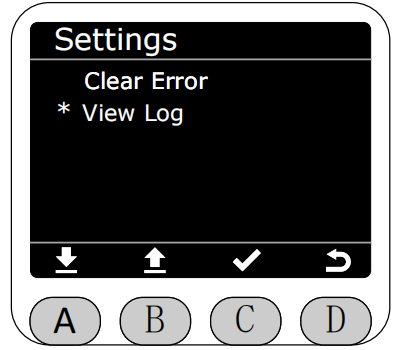
In the Program interface, select the Settings function with the asterisk, then press button C to enter Settings function.
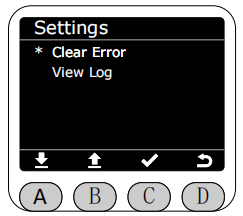
After entering Settings function, you can select Clear Error or View Log of python scripts running on the screen.
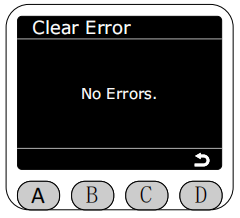
Enter Clear Error page. If the robotic arm is not in joint limit, coupling position, or has triggered collision, it will prompt "No Errors."
If there is a joint beyond the limit, it will prompt being in limit. Press button C to home to clear the limit error.
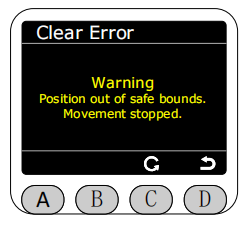
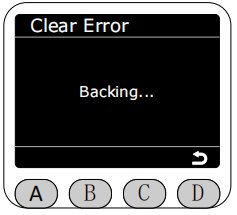
During homing, white text prompts "Backing..."
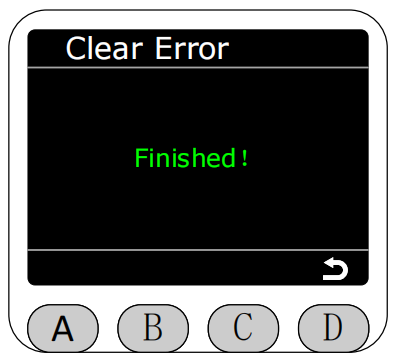
After homing is complete, green text prompts "Finished!", and automatically returns to settings page after 3 seconds.
If the machine is in coupling position or has triggered collision, it will prompt being in coupling position or has collided. Press button C to clear the error.
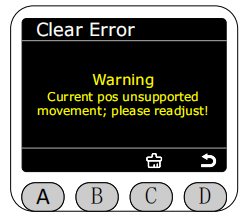
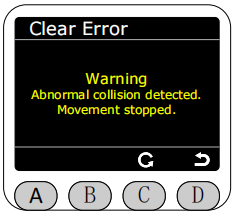
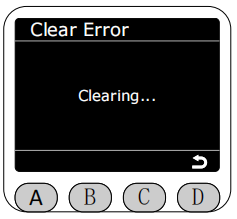
During clearing, white text prompts "Clearing..."
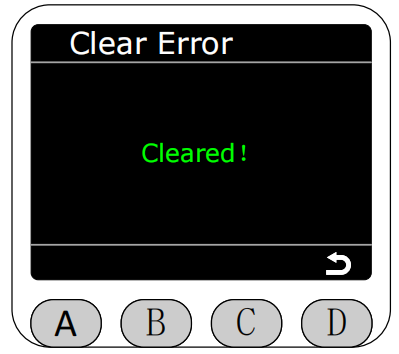
After clearing coupling is complete, green text prompts "Cleared!", and automatically returns to settings page after 3 seconds.
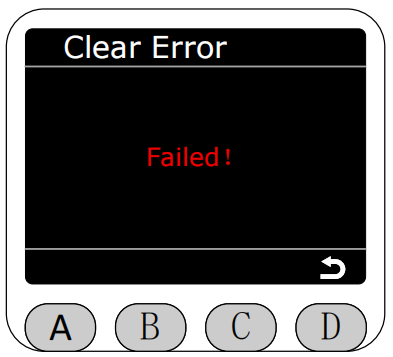
If clearing coupling fails, red text prompts "failed!", and automatically returns to settings page after 3 seconds.
Return to Settings page and select View Log to enter, you can view log files generated by python scripts running on the screen.
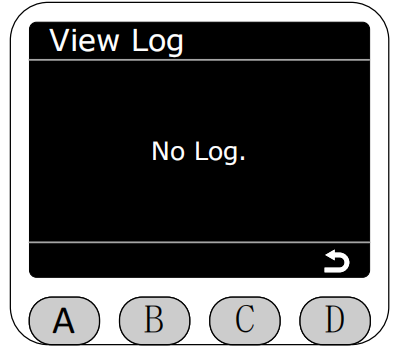
After entering View Log, if there are no log files, it will prompt "No Log."
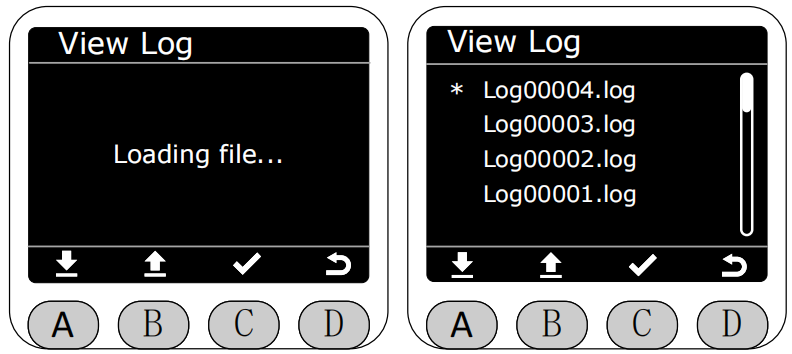
If there are log files, it will load and display all log files.
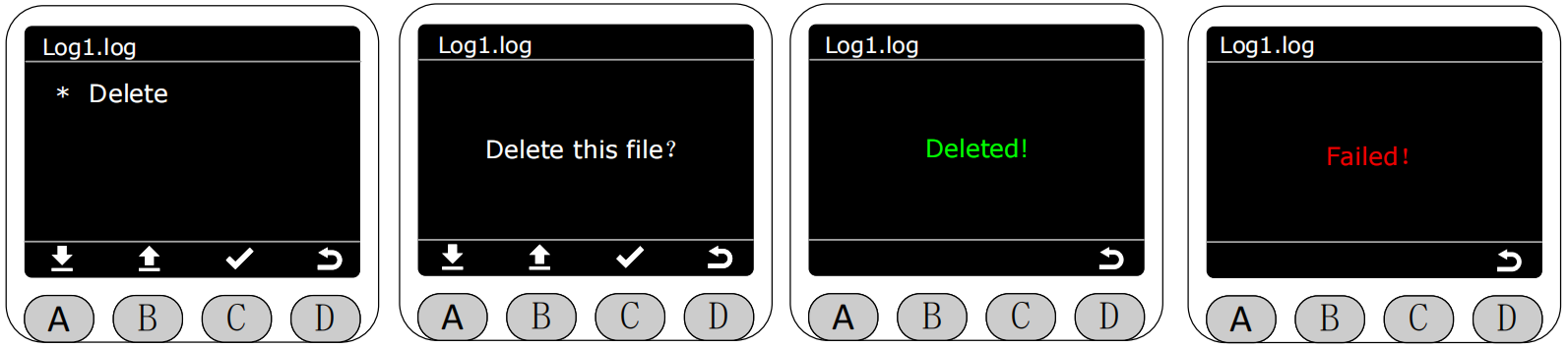
You can select the log file you want to view and press button C to enter and view detailed logs of this file. You can press button C again to enter delete page, you can delete this file.
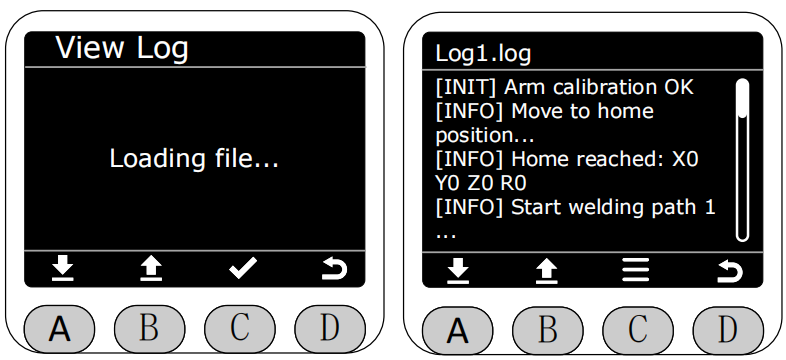
After entering delete page, press button C to prompt whether to confirm deleting this log file. After confirmation, it will be deleted.