First Use
Supported Operating Systems for myStudio Pro
Windows 10/11
macOS
Linux_x86_64
Installing myStudio Pro
The following installation steps use Windows OS as an example. Before reading this section, please ensure you have the software installation package.
- Double-click the software installer to begin installation. Choose the installation user options according to your own needs.
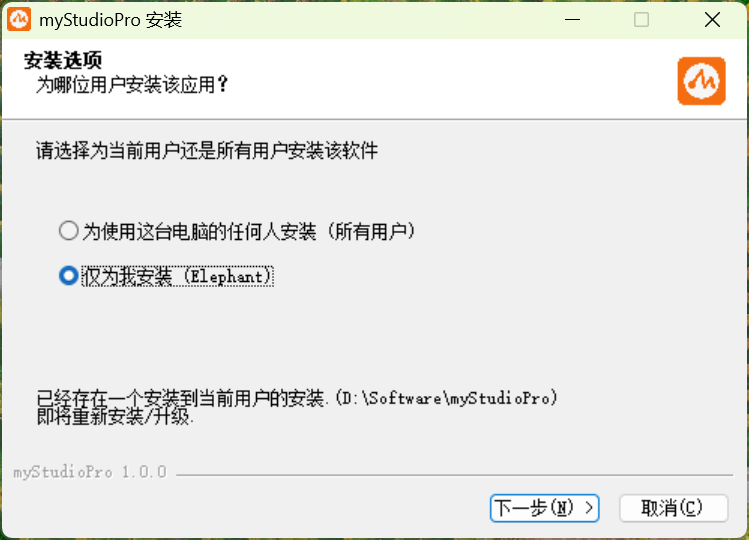
- Click [Next], choose the installation path for the software according to your needs. It is recommended to install to a path other than the C drive.
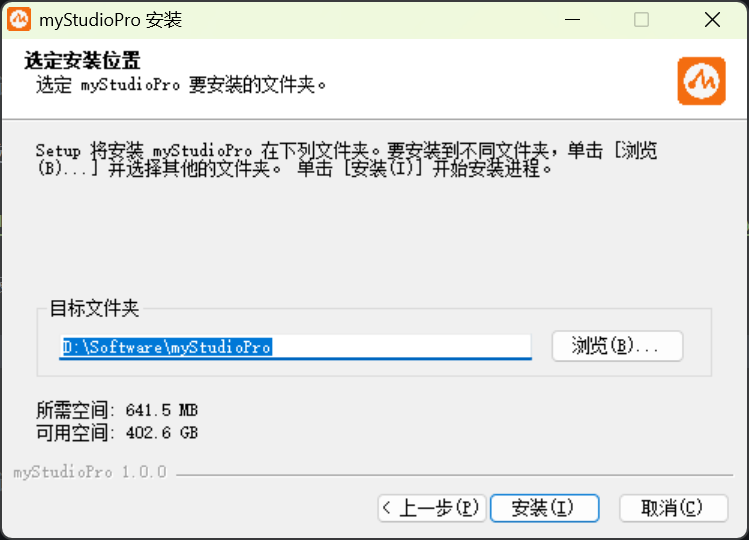
- After confirming everything is correct, click [Install] and wait patiently until the software installation is complete.
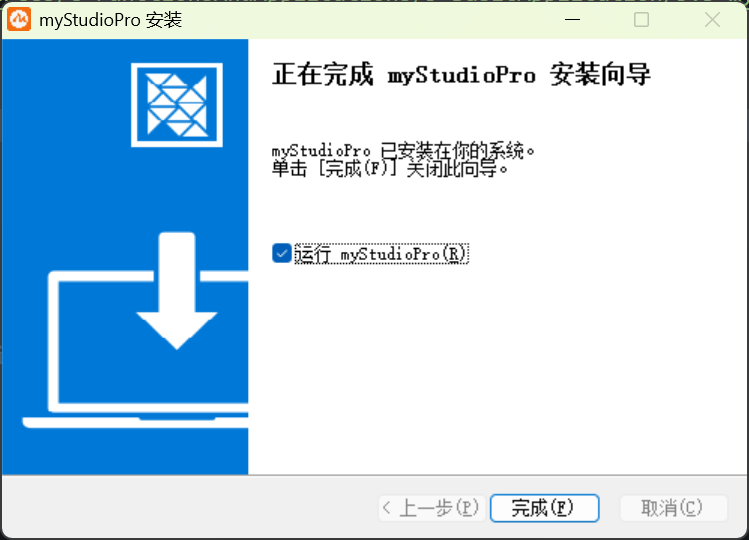
- Click [Finish] to run the software.
Uninstalling myStudio Pro
The following uninstallation steps use Windows OS with a desktop shortcut created as an example. Before reading this section, please ensure the software has been successfully installed on your device.
- Select the software and right-click.
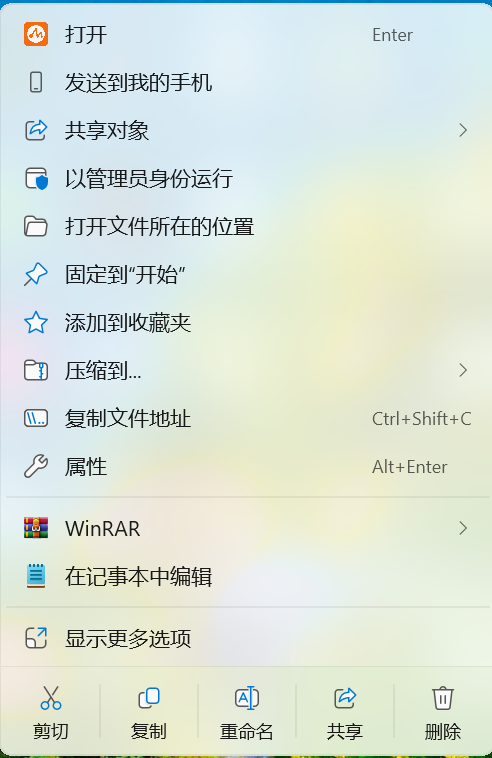
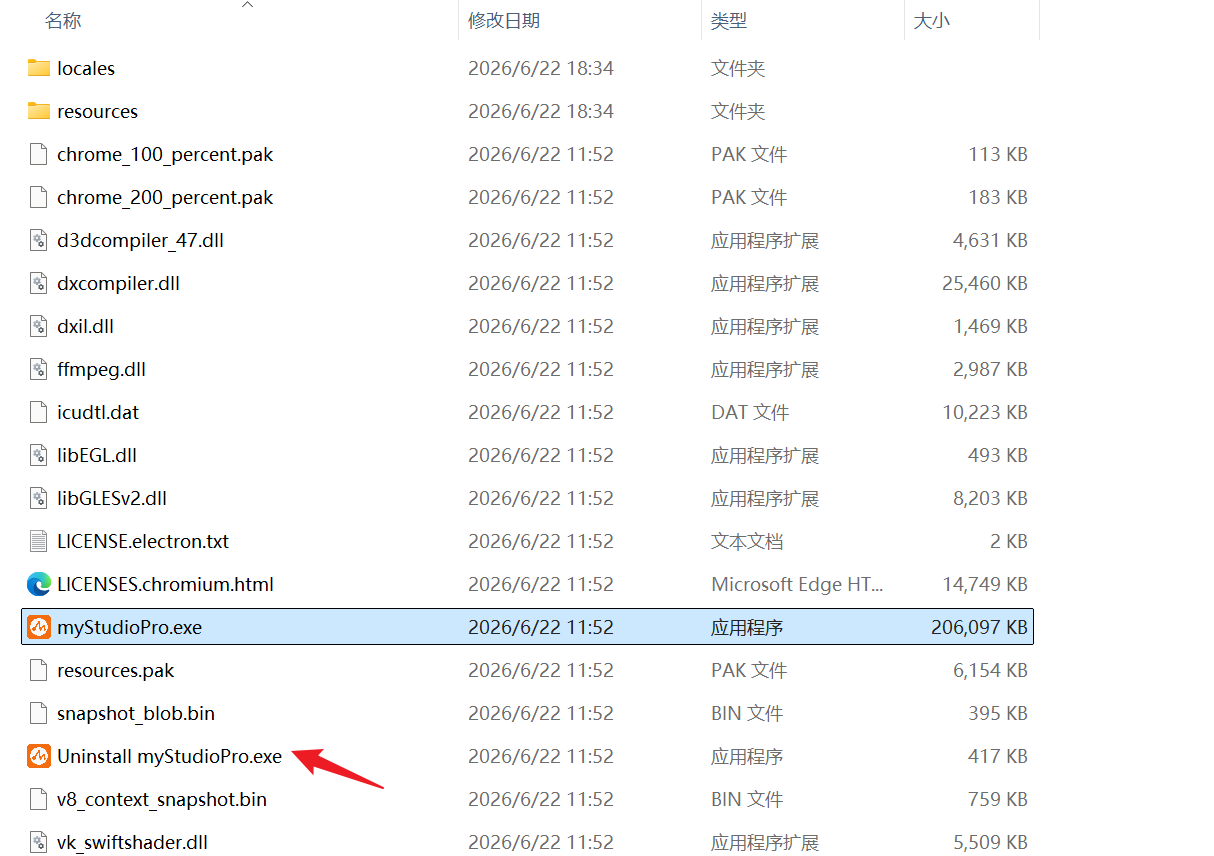
- Select [Open file location], find the [Uninstall xxx.exe] executable file and double-click it.
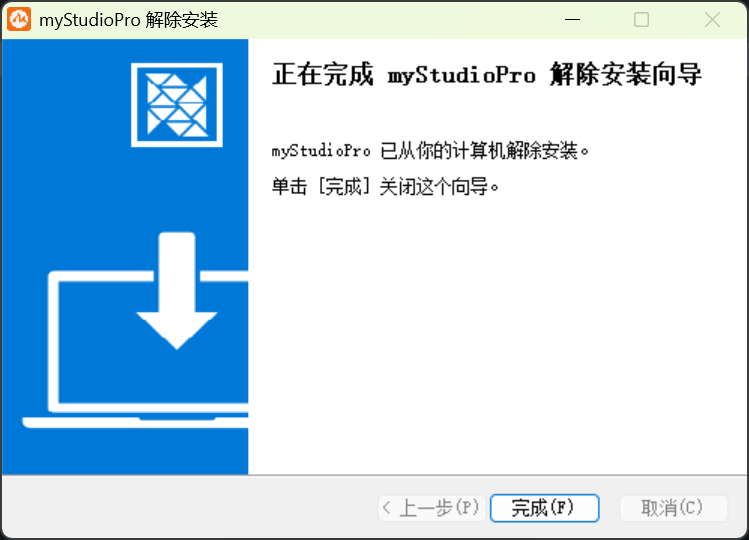
- Open the [Uninstall Wizard], click Next to complete the software uninstallation.
Preparatory Work
Required tools: ultraArm P1 robotic arm, DC12VA DC power supply, USB power source, etc.
Note: Please ensure that you have completed the above-mentioned structure installation and placed the robotic arm horizontally on a table with a load capacity of at least 5 times the weight of the robotic arm itself, to ensure operational safety.
Please follow the following diagrammed procedure to connect the power adapter to the corresponding interface on the robotic arm:
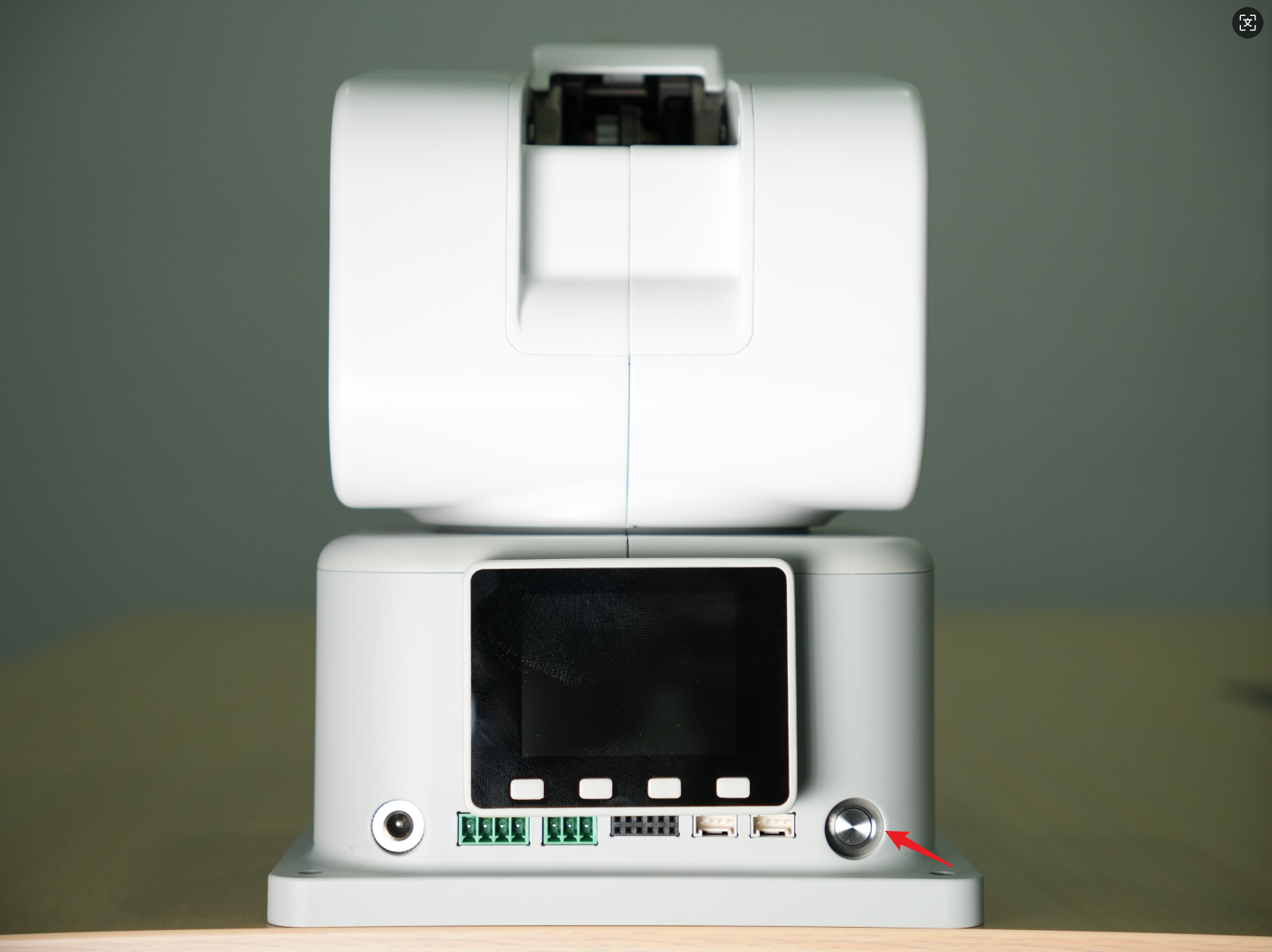
Step 1: Connect the DC power supply to the corresponding DC circular interface on the ultraArm P1 robotic arm. The other end of the adapter should be connected to a 110-220V power socket.
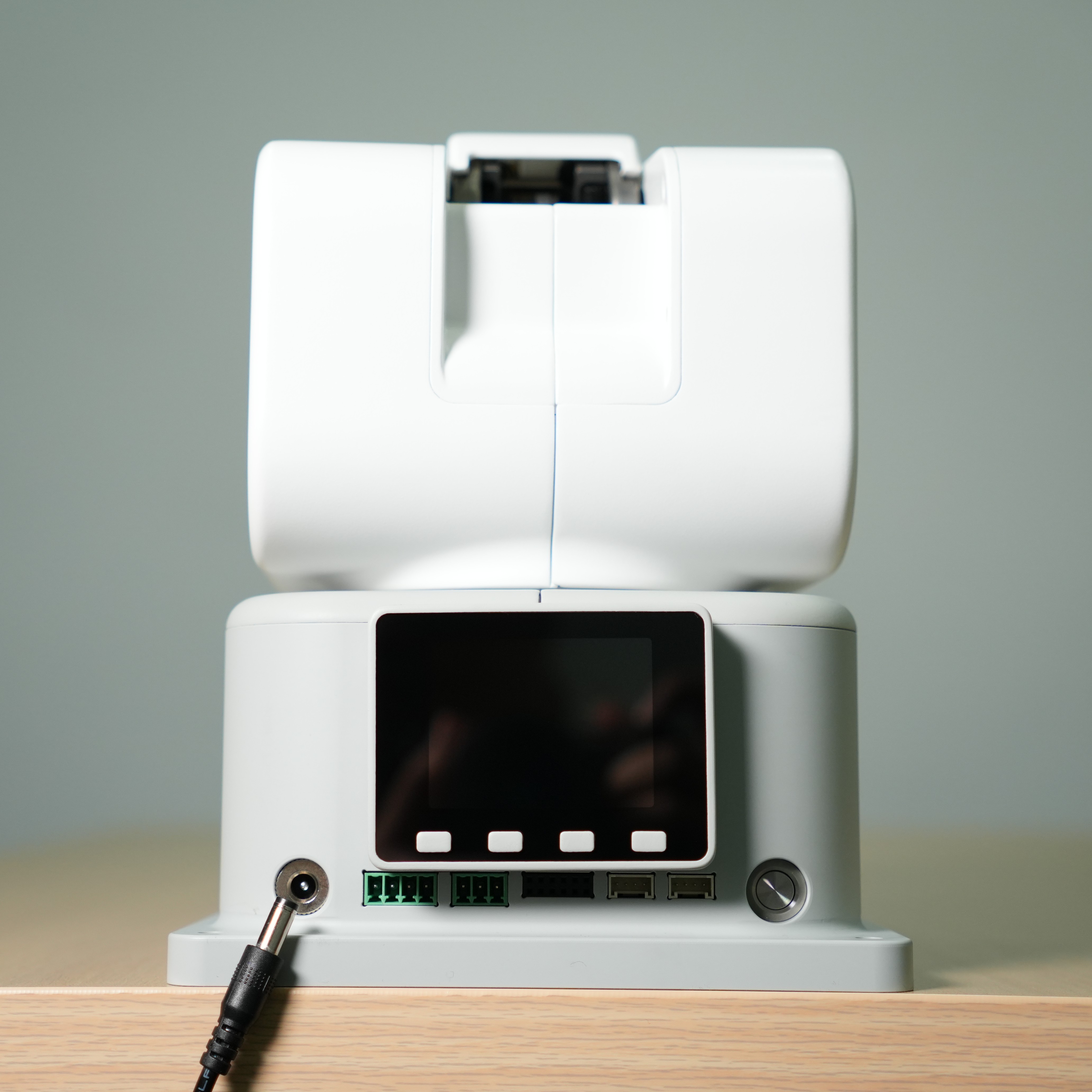
Step 2: Connect the corresponding Type-C interface on the ultraArm P1 robotic arm to the host computer.
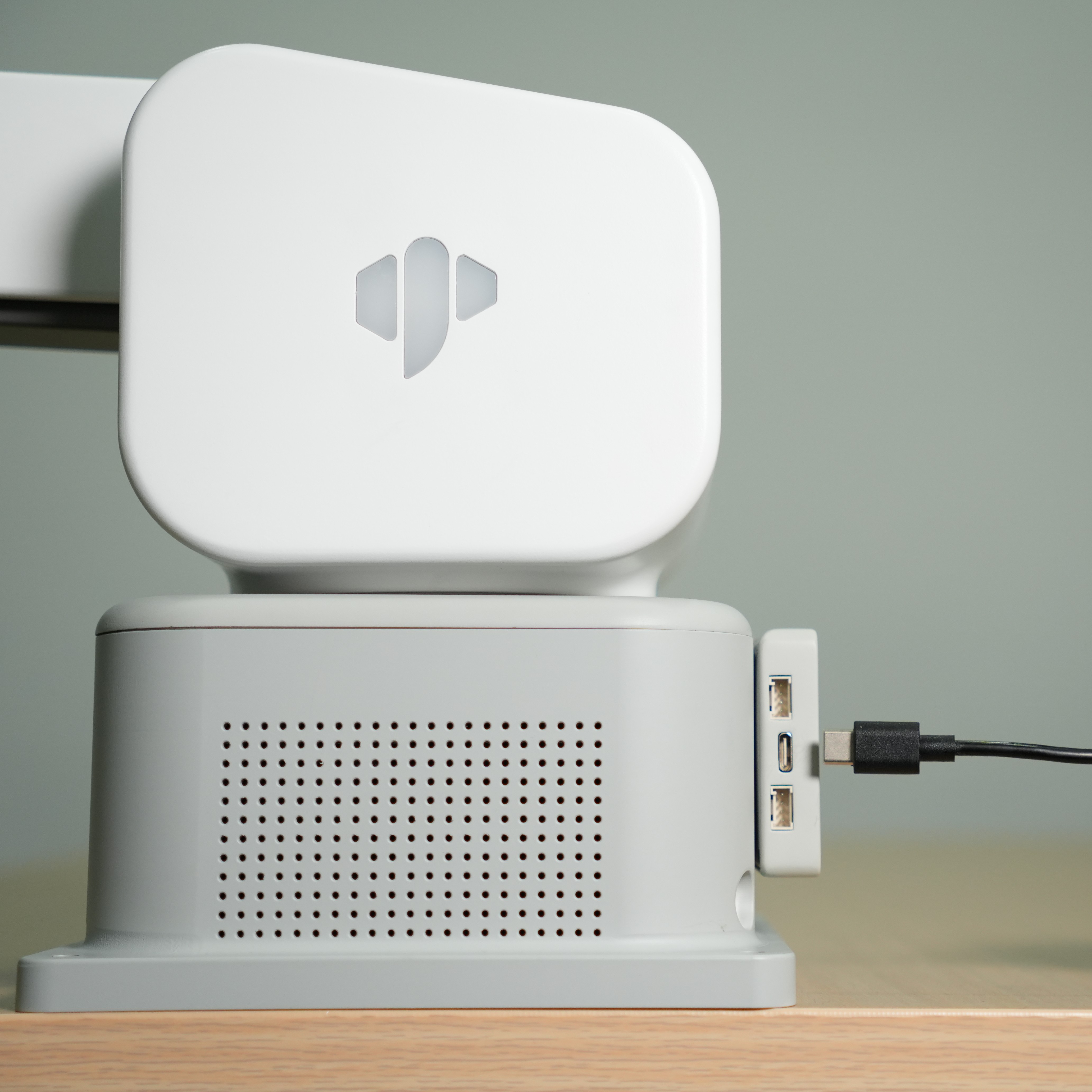
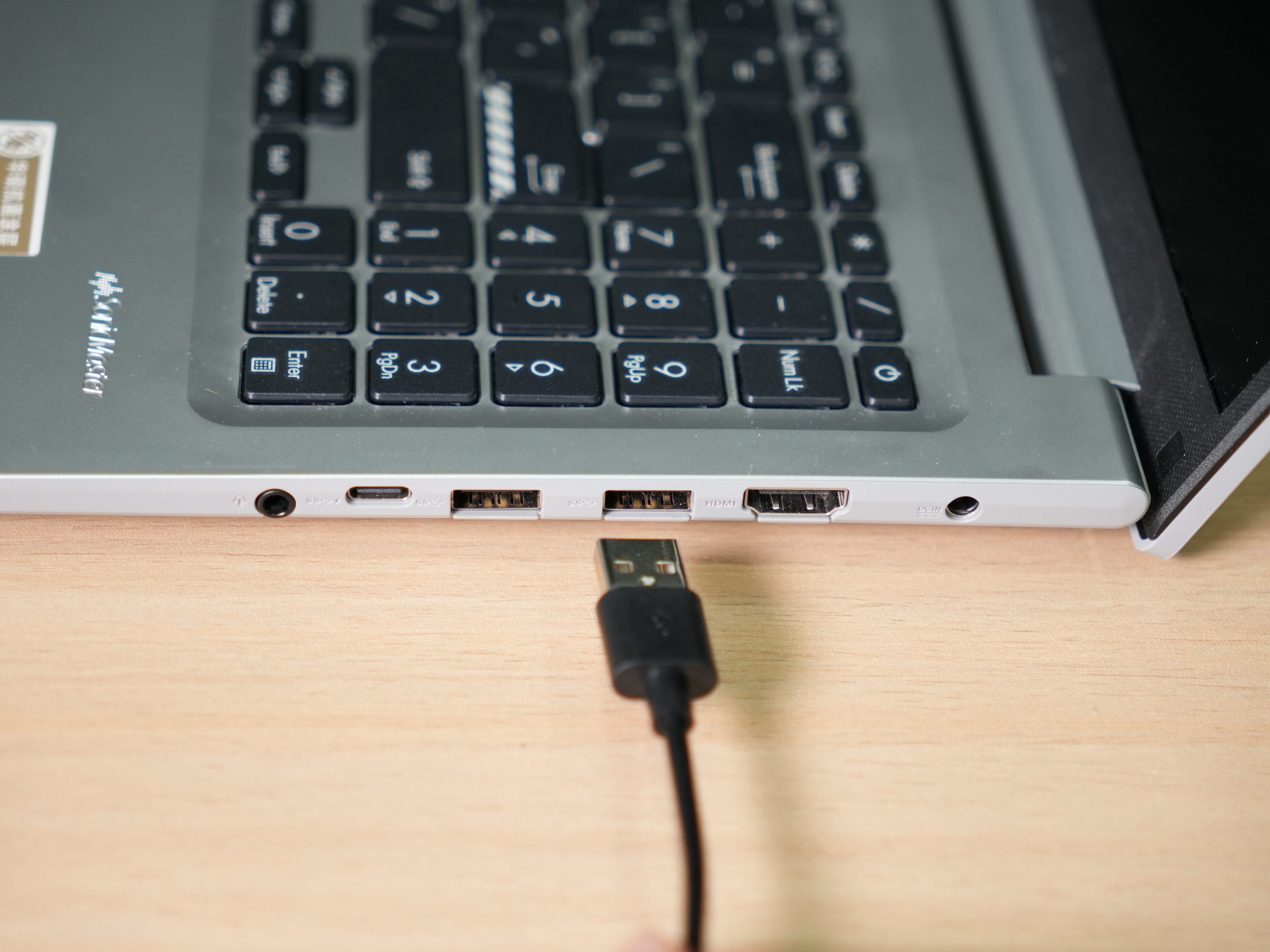
Step 3: Press the power switch. Wait for 5 seconds. When the MiniRobot screen starts up and displays real-time coordinate information, and the top robotic arm status indicator icon turns green, the startup preparation is complete.
Use myStudio Pro
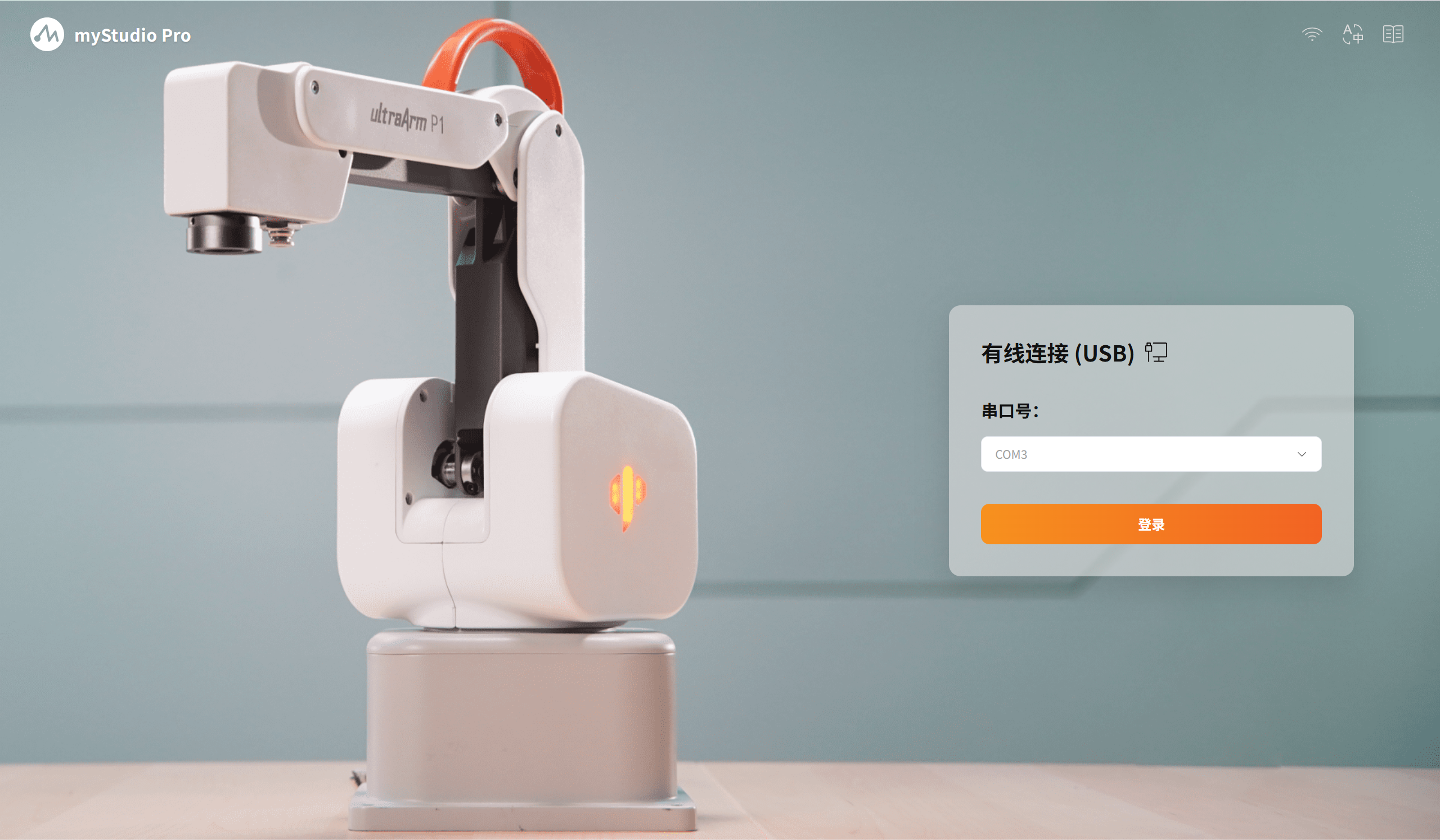
Double-click the mouse to open the installed software. The software will automatically detect the available serial ports. Just click the "Login" button.