7.4 SBC 手柄控制
本节说明使用 USB 手柄在 UNO Q 的 SBC 模式下控制 myCobot 280。手柄控制会直接产生机械臂运动,首次使用请先运行“手柄映射测试”,确认控制器型号和按键编号与本节一致。
1. 使用前准备
- 按 7.1 SBC 模式连接显示器、键盘、鼠标和带外部供电能力的 USB Hub。
- 将手柄 USB 接收器接入 Hub,确认手柄已配对;不要在机械臂运动时插拔接收器。
- 在 UNO Q 的 App Lab 中导入完整的
Robot Handle Control.zip,其中应保留python/、sketch/、app.yaml和本地pymycobotwheel。 - 案例的
python/requirements.txt需包含pygame==2.6.1。启动前,停止 App Lab、Python 或 TCP Socket 的其他控制程序。 - 固定机械臂底座,清空工作区域;若未安装夹爪或吸泵,不要按对应外设按钮。
2. 先确认手柄映射
先运行 Joystick Mapping Test 案例。它不会连接或移动机械臂,只会在 App Lab Console 中显示手柄名称、轴数量、按钮数量和实际事件,例如 button 0 down、axis 3 value 1.000 或 hat 0 value (1, 0)。
本项目配套手柄在已验证环境中通常显示为:A/B/X/Y 对应 button 0/1/2/3,L1/R1 对应 button 4/5,L2/R2 对应 axis 2/5,左摇杆为 axis 0/1,右摇杆为 axis 3/4,十字键为 hat 0。不同手柄或驱动的编号可能不同,映射测试输出才是最终依据。
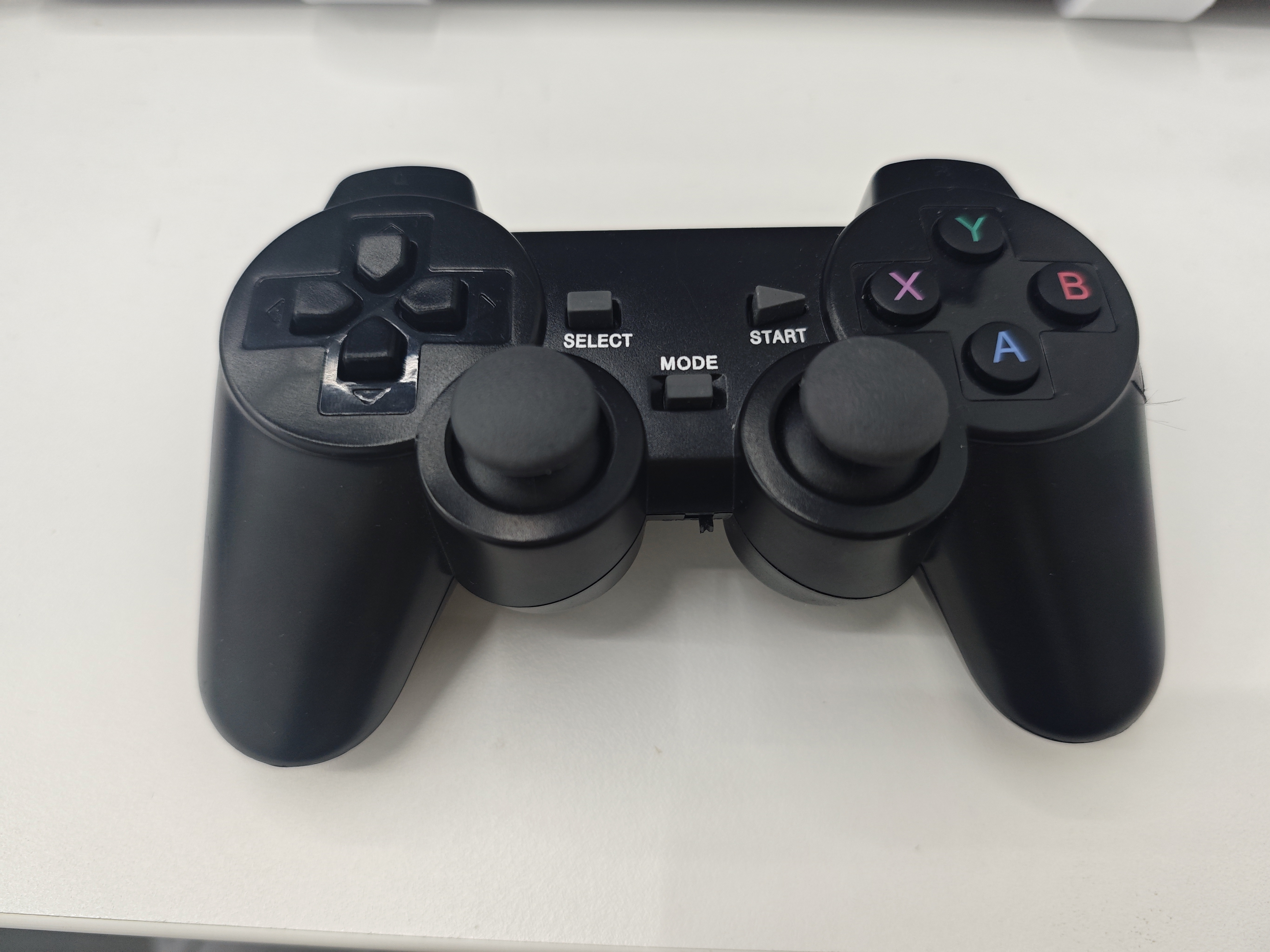
图 7.4-1 本项目配套 USB 手柄(正面)
L1/L2/R1/R2 位于手柄顶部,未在这张正面照片中完整展示;请以按键名称和映射测试输出为准。
3. 控制功能
3.1 机械臂移动
| 控件 | 操作 | pygame 事件 |
功能 |
|---|---|---|---|
| 左摇杆 | 上 | axis 1 < -0.3 |
X 增加:jog_coord(1, 1, 50) |
| 左摇杆 | 下 | axis 1 > 0.3 |
X 减小:jog_coord(1, 0, 50) |
| 左摇杆 | 左 | axis 0 < -0.3 |
Y 增加:jog_coord(2, 1, 50) |
| 左摇杆 | 右 | axis 0 > 0.3 |
Y 减小:jog_coord(2, 0, 50) |
| 右摇杆 | 上 | axis 4 < -0.3 |
Z 减小:jog_coord(3, 0, 50) |
| 右摇杆 | 下 | axis 4 > 0.3 |
Z 增加:jog_coord(3, 1, 50) |
| 右摇杆 | 左 | axis 3 < -0.3 |
RZ 减小:jog_coord(6, 0, 50) |
| 右摇杆 | 右 | axis 3 > 0.3 |
RZ 增加:jog_coord(6, 1, 50) |
| 十字键 | 上 | hat 0 (0, 1) |
RX 增加:jog_coord(4, 1, 50) |
| 十字键 | 下 | hat 0 (0, -1) |
RX 减小:jog_coord(4, 0, 50) |
| 十字键 | 左 | hat 0 (-1, 0) |
RY 增加:jog_coord(5, 1, 50) |
| 十字键 | 右 | hat 0 (1, 0) |
RY 减小:jog_coord(5, 0, 50) |
摇杆和十字键均为点动控制。每次触发只发送一个小步进动作;若方向与实际预期相反,请不要继续操作,应先查看映射测试输出并联系支持人员确认。
3.2 外设、姿态与舵机
| 按键 | pygame 事件 |
功能 | 使用条件 |
|---|---|---|---|
| A | button 0 |
打开吸泵 | 已安装吸泵且气路、接线正确 |
| B | button 1 |
关闭吸泵并执行泄压 | 已安装吸泵 |
| X | button 2 |
打开夹爪 | 已安装自适应夹爪 |
| Y | button 3 |
关闭夹爪 | 已安装自适应夹爪 |
| L1 | button 4 |
回零姿态 | 确认运动空间足够 |
| R1 | button 5 |
移动到初始姿态 [0, 0, -90, 0, 0, 0] |
建议启动后先执行,并确认运动空间 |
| L2 | axis 2 > 0.3 |
释放全部舵机 | 见下方安全警告 |
| R2 | axis 5 > 0.3 |
舵机上电并锁定关节 | L2 后恢复保持力时使用 |
重要安全警告: L2 会释放全部舵机,机械臂可能立即失去保持力并下垂。按下前必须托住机械臂或确保其处于安全支撑位置;人员应远离关节和末端。需要重新保持姿态时按 R2,但不要在机械臂受阻或外力拉扯时执行。
4. 运行与停止
- 在 SBC 模式的 App Lab 中选择 UNO Q,并导入完整
Robot Handle Control.zip。 - 点击 Run;在 Main / Python Console 中确认显示“检测到手柄”。未检测到时,案例会每 2 秒继续检测接收器。
- 建议先按 R1,使机械臂进入初始姿态;随后仅用摇杆做小幅点动测试,再测试外设按键。
- 停止时点击 App Lab 的 Stop。机械臂停止后再关闭 App 或拔出接收器。
运行时每个有效操作会输出对应动作和接口调用;摇杆或十字键回中会自动发送 stop()。如果手柄在运行中断开,案例会停止机械臂并继续等待重新连接。
5. 在 UNO Q Python 终端运行(可选)
除 App Lab 外,也可以直接在 UNO Q 的 Debian Python 终端运行手柄控制脚本。此方式不需要启动 App Lab,适合调试、二次开发或 SBC 桌面外的终端操作;运行期间同样只能保留一个机械臂控制入口。
- 将手柄接收器接入 UNO Q,并按第 2 节完成映射测试。
- 确认 UNO Q 的 Python 环境已具备 UNO Q 适配版
pymycobot和pygame;若提示缺少pygame,请按交付环境的依赖安装说明补齐。 - 进入示例目录并启动脚本:
cd ~/mycobot/example/
python3 myCobot280_unoq_handle_control.py
- Console 显示“检测到手柄”后,建议先按 R1,再做小幅摇杆测试。按
Ctrl+C停止脚本;脚本会尝试发送stop(),手柄断开时也会先停止机械臂。
6. 映射测试源码
PDF 文档中无法下载外部脚本,因此这里同时列出手柄映射测试源码。映射测试不会连接机械臂,也不会发送运动指令,只用于在 Console 中确认当前手柄的 axis、button 和 hat 编号。
6.1 App Lab 版
在 App Lab 项目中,将下面代码放入 python/main.py。运行后按下手柄各个按键,Console 会输出实际编号。
# coding:utf-8
# Copy this file content to Arduino App Lab python/main.py.
import time

import pygame
from arduino.app_utils import App


RETRY_SECONDS = 2.0
AXIS_DEAD_ZONE = 0.2

joystick = None
last_retry = 0.0


def print_device_info():
    print("pygame version:", pygame.version.ver)
    print("SDL version:", pygame.get_sdl_version())


def try_connect_joystick():
    global joystick, last_retry

    now = time.time()
    if joystick is not None:
        return
    if now - last_retry < RETRY_SECONDS:
        return
    last_retry = now

    pygame.joystick.quit()
    pygame.joystick.init()
    if pygame.joystick.get_count() <= 0:
        print("未检测到手柄 USB 接收器,{} 秒后继续检测...".format(RETRY_SECONDS))
        return

    joystick = pygame.joystick.Joystick(0)
    joystick.init()
    pygame.event.clear()
    print("检测到手柄:{}".format(joystick.get_name()))
    print("轴数量:{}".format(joystick.get_numaxes()))
    print("按钮数量:{}".format(joystick.get_numbuttons()))
    print("十字键数量:{}".format(joystick.get_numhats()))
    print("请依次按 A/B/X/Y、L1/R1、L2/R2、摇杆、十字键,按 Stop 结束。")


def handle_disconnect():
    global joystick
    print("手柄已断开,等待重新连接。")
    joystick = None


def handle_event(event):
    device_added_event = getattr(pygame, "JOYDEVICEADDED", None)
    device_removed_event = getattr(pygame, "JOYDEVICEREMOVED", None)

    if event.type == device_added_event and joystick is None:
        try_connect_joystick()
        return
    if event.type == device_removed_event:
        handle_disconnect()
        return

    if joystick is None:
        return

    if event.type == pygame.JOYBUTTONDOWN:
        print("button {} down".format(event.button))
    elif event.type == pygame.JOYBUTTONUP:
        print("button {} up".format(event.button))
    elif event.type == pygame.JOYAXISMOTION and abs(event.value) >= AXIS_DEAD_ZONE:
        print("axis {} value {:.3f}".format(event.axis, event.value))
    elif event.type == pygame.JOYHATMOTION:
        print("hat {} value {}".format(event.hat, event.value))


def setup():
    pygame.init()
    pygame.joystick.init()
    print_device_info()
    try_connect_joystick()


def loop():
    try_connect_joystick()
    for event in pygame.event.get():
        try:
            handle_event(event)
        except pygame.error as exc:
            print("读取手柄失败:{},等待重新连接。".format(exc))
            handle_disconnect()
    time.sleep(0.01)


setup()
App.run(user_loop=loop)
6.2 Debian 终端版
如果不使用 App Lab,也可以在 UNO Q Debian 终端运行下面脚本。该版本会额外输出 /dev/input 诊断信息,适合排查接收器、驱动或 pygame 识别问题。
# coding:utf-8
import glob
import os
import platform
import stat
import sys
import time

import pygame


RETRY_SECONDS = 2.0
AXIS_PRINT_THRESHOLD = 0.2
DIAG_INTERVAL = 5


def format_mode(path):
    try:
        mode = os.stat(path).st_mode
    except OSError as exc:
        return "stat failed: {}".format(exc)
    return stat.filemode(mode)


def print_input_diagnostics():
    print("pygame joystick count: {}".format(pygame.joystick.get_count()))
    if platform.system() == "Windows":
        print_windows_diagnostics()
    else:
        print_linux_diagnostics()


def print_windows_diagnostics():
    print("当前系统:Windows")
    print("如果 pygame 检测不到手柄,请先确认 Windows 已识别手柄:")
    print("  1. 打开“设备管理器”,查看是否有 Xbox 360 Controller 或游戏控制器设备。")
    print("  2. 按 Win+R,运行 joy.cpl,确认手柄能在“游戏控制器”列表中出现。")
    print("  3. 如果 joy.cpl 能识别但 pygame 不能识别,尝试重新插拔 USB 接收器或重启 Python 进程。")
    print("  4. 如使用虚拟环境,请确认当前环境已安装 pygame。")


def print_linux_diagnostics():
    js_devices = sorted(glob.glob("/dev/input/js*"))
    event_devices = sorted(glob.glob("/dev/input/event*"))
    input_names = sorted(glob.glob("/dev/input/by-id/*")) + sorted(glob.glob("/dev/input/by-path/*"))

    print("当前系统:{}".format(platform.system()))
    print("/dev/input/js*: {}".format(js_devices if js_devices else "none"))
    for path in js_devices:
        print("  {} {}".format(path, format_mode(path)))
    print("/dev/input/event* count: {}".format(len(event_devices)))
    if input_names:
        print("/dev/input links:")
        for path in input_names:
            try:
                target = os.readlink(path)
            except OSError:
                target = ""
            print("  {} -> {}".format(path, target))
    print("如果 lsusb 能看到手柄但这里没有 /dev/input/js0,通常是 joydev/xpad 没有创建 joystick 设备。")
    print("可检查:lsmod | grep -E 'joydev|xpad'")
    print("可尝试:sudo modprobe joydev")
    print("如仍没有 js0,再尝试:sudo modprobe xpad")
    print_proc_input_devices()


def print_proc_input_devices():
    path = "/proc/bus/input/devices"
    try:
        with open(path, "r", encoding="utf-8", errors="replace") as input_file:
            content = input_file.read().strip()
    except OSError as exc:
        print("{} 读取失败:{}".format(path, exc))
        return

    if not content:
        print("{} 为空。".format(path))
        return

    print("{}:".format(path))
    for block in content.split("\n\n"):
        lower_block = block.lower()
        if "xbox" in lower_block or "joystick" in lower_block or "gamepad" in lower_block:
            print(block)


def wait_for_joystick():
    retry_count = 0
    while True:
        for event in pygame.event.get():
            if event.type == pygame.QUIT:
                pygame.quit()
                sys.exit()

        pygame.joystick.quit()
        pygame.joystick.init()
        if pygame.joystick.get_count() > 0:
            joystick = pygame.joystick.Joystick(0)
            joystick.init()
            print("检测到手柄:{}".format(joystick.get_name()))
            print("轴数量:{}".format(joystick.get_numaxes()))
            print("按钮数量:{}".format(joystick.get_numbuttons()))
            print("十字键数量:{}".format(joystick.get_numhats()))
            print("请依次按 A/B/X/Y、L/R、摇杆、十字键,按 Ctrl+C 退出。")
            pygame.event.clear()
            return joystick

        print("未检测到手柄 USB 接收器,{} 秒后继续检测...".format(RETRY_SECONDS))
        retry_count += 1
        if retry_count % DIAG_INTERVAL == 0:
            print_input_diagnostics()
        time.sleep(RETRY_SECONDS)


def print_button_event(event):
    state = "down" if event.type == pygame.JOYBUTTONDOWN else "up"
    print("button {} {}".format(event.button, state))


def print_axis_event(event):
    value = round(event.value, 3)
    if abs(value) >= AXIS_PRINT_THRESHOLD:
        print("axis {} value {}".format(event.axis, value))
    elif value == 0:
        print("axis {} value 0".format(event.axis))


def print_hat_event(event):
    print("hat {} value {}".format(event.hat, event.value))


def main():
    print("pygame version: {}".format(pygame.version.ver))
    print("SDL version: {}".format(pygame.get_sdl_version()))
    pygame.init()
    pygame.joystick.init()
    joystick = None

    try:
        joystick = wait_for_joystick()
        while True:
            for event in pygame.event.get():
                if event.type == pygame.QUIT:
                    return
                if event.type in (pygame.JOYBUTTONDOWN, pygame.JOYBUTTONUP):
                    print_button_event(event)
                elif event.type == pygame.JOYAXISMOTION:
                    print_axis_event(event)
                elif event.type == pygame.JOYHATMOTION:
                    print_hat_event(event)
                elif event.type == getattr(pygame, "JOYDEVICEREMOVED", None):
                    print("手柄已断开,等待重新连接。")
                    joystick = None
                    joystick = wait_for_joystick()
                elif event.type == getattr(pygame, "JOYDEVICEADDED", None) and joystick is None:
                    joystick = wait_for_joystick()
            time.sleep(0.01)
    except KeyboardInterrupt:
        print("\n退出手柄映射检测。")
    finally:
        if joystick:
            joystick.quit()
        pygame.quit()


if __name__ == "__main__":
    main()
7. 手柄控制完整源码
PDF 文档中无法下载外部 .py 文件,因此这里直接列出 Debian Python 手柄控制源码。源码也保存在示例目录 example/myCobot280_unoq_handle_control.py 中;若需要在项目中二次开发,建议以该脚本为基础复制修改。
源码中的按键编号是本项目已验证环境的默认值。更换手柄、接收器、系统镜像或 pygame/SDL 版本后,请先运行映射测试,再调整代码中的轴和按钮编号。
# coding:utf-8
# Arduino UNO Q Bridge joystick control demo for myCobot280.
import sys
import threading
import time

import pygame
from pymycobot import MyCobot280


# UNO Q Debian local control. The default UNO Q Bridge baudrate is 1000000.
mc = MyCobot280(unoq_bridge=True)
robot_lock = threading.RLock()

INIT_ANGLES = [0, 0, -90, 0, 0, 0]
GO_HOME = [0, 0, 0, 0, 0, 0]
JOG_SPEED = 50
DEAD_ZONE = 0.3
JOYSTICK_RETRY_SECONDS = 2.0

AXIS_MAP = {
    # Xbox 360 Controller on UNO Q / pygame:
    # left stick horizontal=axis 0, left stick vertical=axis 1,
    # left trigger=axis 2, right stick horizontal=axis 3,
    # right stick vertical=axis 4, right trigger=axis 5.
    "x": 1,
    "y": 0,
    "z": 4,
    "rz": 3,
}
RELEASE_AXIS = 2
POWER_AXIS = 5

BUTTON_MAP = {
    # A=0, B=1, X=2, Y=3, L1=4, R1=5.
    "gripper_open": 2,
    "gripper_close": 3,
    "pump_on": 0,
    "pump_off": 1,
    "to_init": 5,
    "to_home": 4,
}

COORD_AXIS_ACTIONS = {
    AXIS_MAP["y"]: (2, 1, 0),
    AXIS_MAP["x"]: (1, 1, 0),
    AXIS_MAP["z"]: (3, 0, 1),
    AXIS_MAP["rz"]: (6, 0, 1),
}

HAT_ACTIONS = {
    (0, -1): (4, 0),
    (0, 1): (4, 1),
    (-1, 0): (5, 1),
    (1, 0): (5, 0),
}

COORD_NAMES = {
    1: "X",
    2: "Y",
    3: "Z",
    4: "RX",
    5: "RY",
    6: "RZ",
}

previous_axis_state = {}
previous_hat = (0, 0)
stop_thread = None
joystick = None


def robot_call(name, *args):
    with robot_lock:
        return getattr(mc, name)(*args)


def log_action(label, api_name, *args):
    print("{} -> {}({})".format(label, api_name, ", ".join(str(arg) for arg in args)))


def pump_on():
    log_action("A 按钮:打开吸泵", "set_digital_output", 33, 0)
    robot_call("set_digital_output", 33, 0)
    time.sleep(0.05)


def pump_off():
    log_action("B 按钮:关闭吸泵", "set_digital_output", 33, 1)
    robot_call("set_digital_output", 33, 1)
    time.sleep(0.05)
    log_action("B 按钮:打开泄气阀", "set_digital_output", 23, 0)
    robot_call("set_digital_output", 23, 0)
    time.sleep(1)
    log_action("B 按钮:关闭泄气阀", "set_digital_output", 23, 1)
    robot_call("set_digital_output", 23, 1)
    time.sleep(0.05)


def safe_stop():
    try:
        log_action("摇杆/十字键回中:停止运动", "stop")
        robot_call("stop")
        time.sleep(0.02)
    except Exception as exc:
        print("stop 出错:", exc)


def request_stop():
    global stop_thread
    if stop_thread and stop_thread.is_alive():
        return
    stop_thread = threading.Thread(target=safe_stop, daemon=True)
    stop_thread.start()


def reset_joystick_state():
    global previous_hat
    previous_axis_state.clear()
    previous_hat = (0, 0)


def wait_for_joystick():
    global joystick
    while True:
        for wait_event in pygame.event.get():
            if wait_event.type == pygame.QUIT:
                pygame.quit()
                sys.exit()

        pygame.joystick.quit()
        pygame.joystick.init()
        if pygame.joystick.get_count() > 0:
            joystick = pygame.joystick.Joystick(0)
            joystick.init()
            reset_joystick_state()
            print("检测到手柄:{}".format(joystick.get_name()))
            pygame.event.clear()
            return

        print("未检测到手柄 USB 接收器,{} 秒后继续检测...".format(JOYSTICK_RETRY_SECONDS))
        time.sleep(JOYSTICK_RETRY_SECONDS)


def axis_direction(value):
    if value > DEAD_ZONE:
        return 1
    if value < -DEAD_ZONE:
        return -1
    return 0


def handle_axis_motion(event):
    axis = event.axis
    direction = axis_direction(event.value)

    if previous_axis_state.get(axis, 0) == direction:
        return
    previous_axis_state[axis] = direction

    if direction == 0:
        request_stop()
        return

    if axis in COORD_AXIS_ACTIONS:
        coord_id, negative_dir, positive_dir = COORD_AXIS_ACTIONS[axis]
        move_dir = positive_dir if direction > 0 else negative_dir
        label = "axis {} value {:.2f}:{}方向{}".format(
            axis,
            event.value,
            COORD_NAMES.get(coord_id, coord_id),
            "增加" if move_dir == 1 else "减小",
        )
        log_action(label, "jog_coord", coord_id, move_dir, JOG_SPEED)
        robot_call("jog_coord", coord_id, move_dir, JOG_SPEED)
    elif axis == RELEASE_AXIS and direction > 0:
        log_action("L2 扳机:释放所有关节", "release_all_servos")
        robot_call("release_all_servos")
        time.sleep(0.03)
    elif axis == POWER_AXIS and direction > 0:
        log_action("R2 扳机:上电锁定关节", "power_on")
        robot_call("power_on")
        time.sleep(0.03)


def handle_button_down():
    if joystick is None:
        return

    if joystick.get_button(BUTTON_MAP["gripper_open"]):
        log_action("X 按钮:夹爪张开", "set_gripper_state", 0, 100, 1)
        robot_call("set_gripper_state", 0, 100, 1)
    elif joystick.get_button(BUTTON_MAP["gripper_close"]):
        log_action("Y 按钮:夹爪关闭", "set_gripper_state", 1, 100, 1)
        robot_call("set_gripper_state", 1, 100, 1)
    elif joystick.get_button(BUTTON_MAP["pump_on"]):
        pump_on()
    elif joystick.get_button(BUTTON_MAP["pump_off"]):
        pump_off()
    elif joystick.get_button(BUTTON_MAP["to_init"]):
        log_action("R1 按钮:运动到初始点", "send_angles", INIT_ANGLES, JOG_SPEED)
        robot_call("send_angles", INIT_ANGLES, JOG_SPEED)
        time.sleep(2)
    elif joystick.get_button(BUTTON_MAP["to_home"]):
        log_action("L1 按钮:运动到零位", "send_angles", GO_HOME, JOG_SPEED)
        robot_call("send_angles", GO_HOME, JOG_SPEED)
        time.sleep(3)


def handle_hat_motion():
    global previous_hat
    if joystick is None:
        return

    hat_value = joystick.get_hat(0)
    if hat_value == previous_hat:
        return
    previous_hat = hat_value

    if hat_value == (0, 0):
        request_stop()
        return

    if hat_value in HAT_ACTIONS:
        coord_id, move_dir = HAT_ACTIONS[hat_value]
        label = "十字键 {}:{}方向{}".format(
            hat_value,
            COORD_NAMES.get(coord_id, coord_id),
            "增加" if move_dir == 1 else "减小",
        )
        log_action(label, "jog_coord", coord_id, move_dir, JOG_SPEED)
        robot_call("jog_coord", coord_id, move_dir, JOG_SPEED)


def joy_handler(event):
    device_added_event = getattr(pygame, "JOYDEVICEADDED", None)
    device_removed_event = getattr(pygame, "JOYDEVICEREMOVED", None)

    if event.type == device_added_event and joystick is None:
        wait_for_joystick()
        return
    if event.type == device_removed_event:
        handle_joystick_disconnect()
        return

    if event.type == pygame.JOYAXISMOTION:
        handle_axis_motion(event)
    elif event.type == pygame.JOYBUTTONDOWN:
        handle_button_down()
    elif event.type == pygame.JOYHATMOTION:
        handle_hat_motion()


def handle_joystick_disconnect():
    global joystick
    print("手柄已断开,停止机械臂并等待重新连接。")
    request_stop()
    joystick = None
    reset_joystick_state()


pygame.init()
pygame.joystick.init()
wait_for_joystick()
print("UNO Q 手柄控制已启动,按 Ctrl+C 退出。")

running = True
try:
    while running:
        for event in pygame.event.get():
            if event.type == pygame.QUIT:
                running = False
            else:
                try:
                    joy_handler(event)
                except pygame.error as exc:
                    print("读取手柄失败:{},等待重新连接。".format(exc))
                    handle_joystick_disconnect()

        if joystick is None and running:
            wait_for_joystick()
        time.sleep(0.01)
except KeyboardInterrupt:
    print("\n收到 Ctrl+C,停止机械臂并退出。")
finally:
    try:
        request_stop()
        if stop_thread:
            stop_thread.join(timeout=0.5)
    finally:
        pygame.quit()
8. 常见问题
| 现象 | 检查方法 |
|---|---|
| Console 未检测到手柄 | 检查接收器、手柄配对、USB Hub 外部供电和 pygame 依赖;运行映射测试确认 |
| 方向不正确或按键无动作 | 不要继续控制机械臂;对照映射测试的 axis、button、hat 输出确认控制器型号 |
找不到 /dev/input/js* |
在 UNO Q 终端检查 ls -l /dev/input/js*,确认 USB 接收器和驱动已识别 |
| 吸泵或夹爪无动作 | 确认外设已安装、供电与接线正确;未安装外设时不要按 A/B/X/Y |
| 机械臂无响应 | 先停止其他控制入口,再检查 App Lab Console、机械臂供电和 UNO Q 连接 |