Joint control and coordinate control
In RoboFlow, joint and coordinate control are managed on the QuickMove page. To run RoboFlow and access the program editing interface, select Tools--QuickMove (for instructions on how to enter the program editing interface, please refer to 5.1 Simple Usage of RoboFlow). The control methods for the robot arm movement are divided into continuous motion and step motion. For continuous motion, keep pressing the button until it is released, and the robot arm will stop moving. For step motion, set the increment, and the robot arm will stop when it reaches the designated point
1 Joint Control
Joint Control refers to joint control, where Joint1-6 correspond to joints 1-6 respectively (myPalletizer 260 has four joints, with Joint1-4 corresponding to joints 1-4 respectively)
Function description:
1.1 Select "Continue Motion" or "Discrete Motion" at "Speed". If it is "Discrete Motion", an increment value needs to be set;
1.2 At "Joint Control", each joint has buttons for increasing and decreasing angles. To decrease the angle, press the button on the minus side, and to increase the angle, press the button on the plus side. For "Continue Motion", the motion will continue until the button is released (it will also stop when it reaches the limit). For "Discrete Motion", the motion will stop when it reaches the specified point (for example, if Joint 1 is currently at angle 30 and the increment value is 50, and the button on the minus side is pressed, then the robotic arm will stop moving when it reaches -20). The specific steps are shown in the following figure:
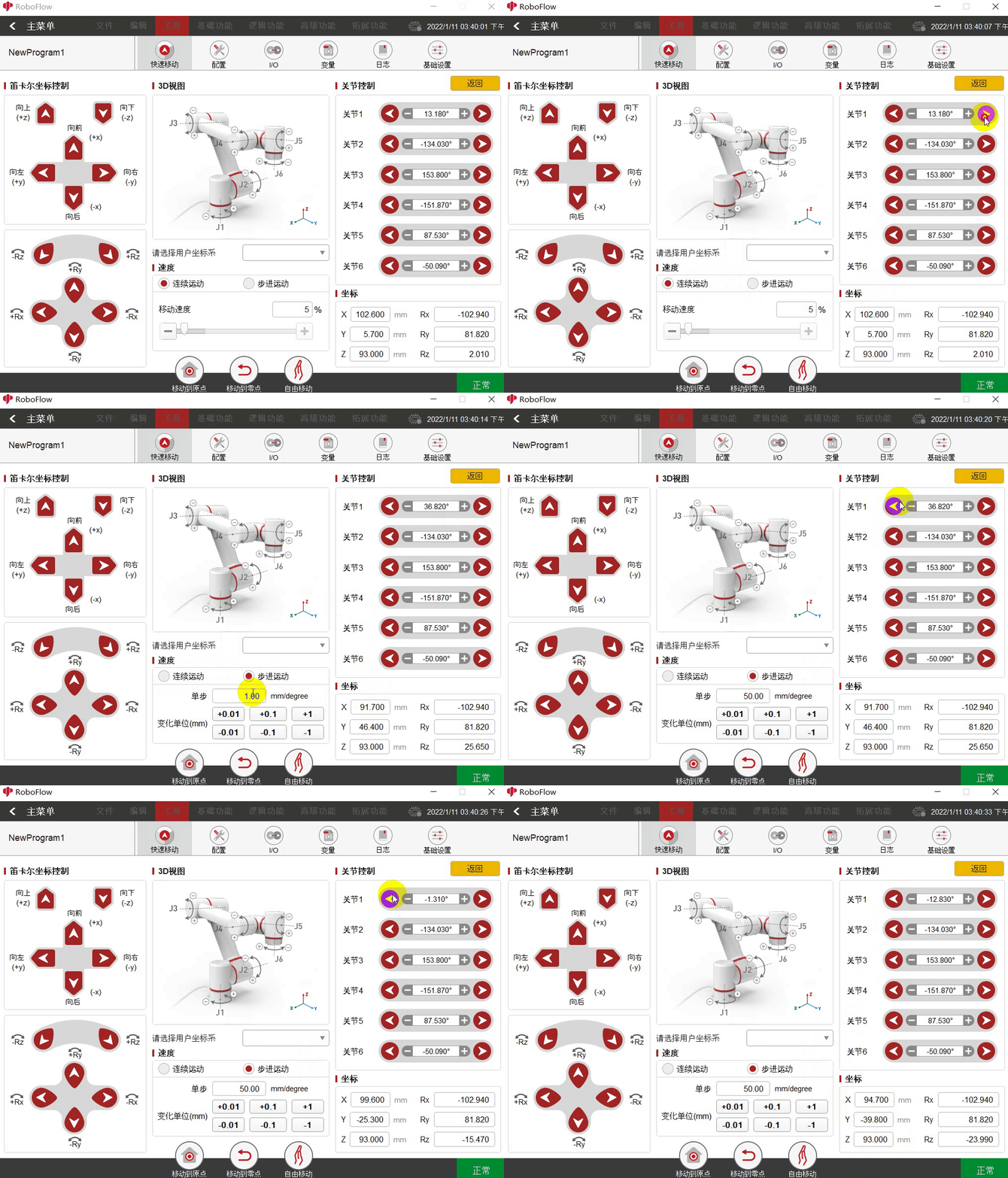
2 Coordinate Control
Note: Before using coordinate control, you need to press the home button first (for 280, you need to press the home button; for 320, you just need to click the home button once). This will allow the robotic arm to reach a certain pose. Once it has reached the desired pose, press the home button again, and you will be prompted with "The robotic arm has reached the required point.".
Coordinates Control refers to coordinate control
Function description:
2.1 Select "Continue Motion" or "Discrete Motion" for "speed". If it is "Discrete Motion", an increment value needs to be set
2.2 Coordinates Control: Each coordinate axis has a plus and minus button. To decrease, press the button marked with a minus sign, and to increase, press the button marked with a plus sign. For continuous movement, pressing the button will continue until it is released (or until it reaches a limit). For step-by-step movement, it will stop when it reaches the desired point (for example, if the current coordinate of the X-axis is 30 and the increment value is 50, pressing the plus button will cause the robotic arm to move to 80 and then stop)